
Best PS5 Controller Settings for Resident Evil Requiem
We know. We know. The latest Resident Evil game came out weeks ago (February 27, 2026), so our best PS5 controller settings for Resident Evil

We know. We know. The latest Resident Evil game came out weeks ago (February 27, 2026), so our best PS5 controller settings for Resident Evil Requiem guide is long overdue. You could say that we’re late to the party (get it?), but as they say, it’s better than never.
With Leon S. Kennedy’s return and Grace Ashcroft’s debut, Capcom delivered a survival horror game with two protagonists who have fundamentally different gameplay demands, making for compelling gameplay and resulting in default DualSense settings that aren’t optimised for either.
Grace Ashcroft’s sections are first-person survival horror. Slow, terrifying, resource-starved. You are navigating the Rhodes Hill Chronic Care Center with a stalker called The Girl, hunting you through walls and ceilings. Every stick input needs to be deliberate. Leon S. Kennedy’s sections are third-person action. Hatchet combos, parries, crowd management, and gunplay through the ruins of Raccoon City. Every stick input needs to be fast.
The stock DualSense defaults leave you underprepared for Resident Evil 9. Lucky for you, our best PS5 controller settings for Resident Evil Requiem fix that.
Most Resident Evil games give you one protagonist and one camera perspective. Resident Evil Requiem gives you two of each. Grace’s first-person gameplay requires low sensitivity for precise, controlled aiming in tight hallways. On the other hand, Leon’s third-person combat demands higher sensitivity for quick 180-degree turns and snap targeting across open areas.
Unfortunately, the game hides per-character sensitivity settings behind a sub-menu that most players never find. To make matters worse, the default dead zone is too high for modern sticks, while aim assist is off by default, and the camera wobble creates motion sickness in first-person. These are not difficult problems to solve, but Capcom does not make them obvious.
Spend 10 to 15 minutes in the settings menu now, and Resident Evil Requiem will feel like a completely different game for the next 15 hours.
| Button | Grace (Default) | Leon (Default) |
| L2 | Aim weapon | Aim weapon |
| R2 | Fire / Attack | Fire / Attack |
| L1 | Ready item / Guard | Guard / Parry |
| R1 | Use item / Reload | Melee (Hatchet) |
| Left Stick | Move | Move |
| Right Stick | Camera | Camera |
| L3 (Press) | Crouch | Sprint |
| R3 (Press) | Quick turn (hold back + R3) | Quick turn (hold back + R3) |
| X | Interact | Interact |
| Square | Reload | Reload |
| Triangle | Open inventory | Open inventory |
| Circle | Dodge / Roll back | Dodge / Roll back |
| D-Pad | Quick select items | Quick select items |
| Touchpad | Map | Map |
| Options | Pause / Menu | Pause / Menu |
If the default layout does not suit you, Resident Evil Requiem offers Custom B and Custom C button presets, plus full rebinding within each preset. To rebind, go to Options > Controls > Button Configuration.
Quick Turn is critical for both characters. Hold back on the left stick and press Circle (default) or R3 to perform an instant 180-degree turn. This is your panic button when enemies flank you.
This is the single most important section in this guide. Resident Evil Requiem hides separate sensitivity settings for Grace and Leon behind a sub-menu that is not visible on the main settings page. Most players never find it, and the default sensitivity is noticeably sluggish for both characters.
Grace’s first-person gameplay demands precise, controlled aiming. You want smooth tracking without overshooting targets in tight corridors.
| Setting | Recommended Value |
| Camera Speed (Horizontal) | 6–7 |
| Camera Speed (Vertical) | 5–6 |
| Aim Sensitivity | Slightly above default (5–6) |
| Camera Acceleration | Medium-High (6–7) |
| Right Stick Dead Zone | 5–7 |
The higher acceleration helps Grace snap around quickly when The Girl ambushes you from behind. Keep aim sensitivity moderate so you can line up headshots on limited ammunition without overcorrecting.
Leon’s combat is faster and more reactive. You need enough sensitivity to circle-strafe crowds and snap to new targets, but not so much that precision suffers during boss fights.
| Setting | Recommended Value |
| Camera Speed (Horizontal) | 5–6 |
| Camera Speed (Vertical) | 4–5 |
| Aim Sensitivity | Moderate (4–5) |
| Camera Acceleration | Medium (5) |
| Right Stick Dead Zone | 5–7 |
Leon benefits from slightly lower sensitivity than Grace because third-person aiming already gives you even more visual information. You do not need to whip the camera around as aggressively when you can see threats approaching from the edges of the frame.
A dead zone of 5 to 7 works well for most DualSense controllers. If your controller is newer, try 5. If you notice slight camera drift when the stick is idle, increase it to 7.
Here is the uncomfortable truth: if you need a dead zone above 8 to prevent drift, your sticks are wearing out. Raising the dead zone masks the symptom at the cost of reduced stick responsiveness. The Hall Effect and TMR sticks eliminate this trade-off entirely because they do not wear out. You can run a dead zone of 3 to 5 with zero drift, which means faster, more responsive input. Test your sticks with TCP’s stick drift calibration tool to see where yours stand.
Requiem defaults Grace to first person and Leon to third person. There are strong reasons to stick with those defaults.
First-person locks in the dread for Grace. Your peripheral vision is limited. Every sound matters. The Girl’s footsteps feel closer because you cannot see her until she is right there. This is the intended horror experience.
Third-person gives Leon the situational awareness his combat demands. Timing parries, tracking multiple enemies, and managing hatchet range all benefit from the wider camera angle.
You can switch perspectives for either character at any time through the Camera settings. If Grace’s first-person sections cause disorientation or motion sickness, switching to third-person removes her stumbling animation and reduces camera wobble. There is no shame in prioritising comfort.
Set Camera Wobble to 0. The default creates a head-bobbing effect in first-person that becomes genuinely nauseating during extended Grace sections. Reducing it to zero makes first-person movement smoother without losing immersion.
Set Motion Sensor Function to 0 unless you specifically want gyro-style camera adjustments. Most players find it disorienting.
There is no FOV slider in Resident Evil Requiem. If you want a wider field of view, switching from first-person to third-person is the only option.
Enable Dot Sight Perspective (set to On). This swaps your camera to first-person when you aim down sights, even if you are playing in third-person. For Leon, this gives you the wider third-person view for navigation and combat awareness, then snaps to first-person precision when you aim. It is the best of both worlds.
| Setting | Recommendation |
| Aim Assist | On (Follow mode, strength 3–4) |
| Reticle Deceleration | On (slows crosshair near targets) |
| Movement Type | Walk (default movement = walking) |
| Run Type | Hold (sprint only while holding L3) |
| Repeated Input Type | Hold (reduces QTE fatigue) |
| Motion Blur | Off |
| Reset Scope Magnification | Off |
Aim Assist is off by default. Turn it on. Requiem is a survival horror game, not a competitive shooter. Aim Assist in Follow mode with a strength of 3 to 4 gives you a gentle magnetism toward targets that makes limited ammunition count without making the game feel automatic.
Reticle Deceleration is particularly useful for controller players. It slows your crosshair as it passes over an enemy, making it easier to stop on target. This is not a crutch. It is a feature designed specifically for analogue stick input.
Set Movement Type to Walk. Grace’s stealth sections punish accidental sprinting. If enemies hear you running, your position is blown. Walking as the default and holding to sprint (Run Type: Hold) gives you complete control over your noise level.
Turn Motion Blur off. It obscures visual information during fast camera movement, which is the exact moment you need the most clarity. Every competitor guide agrees on this.
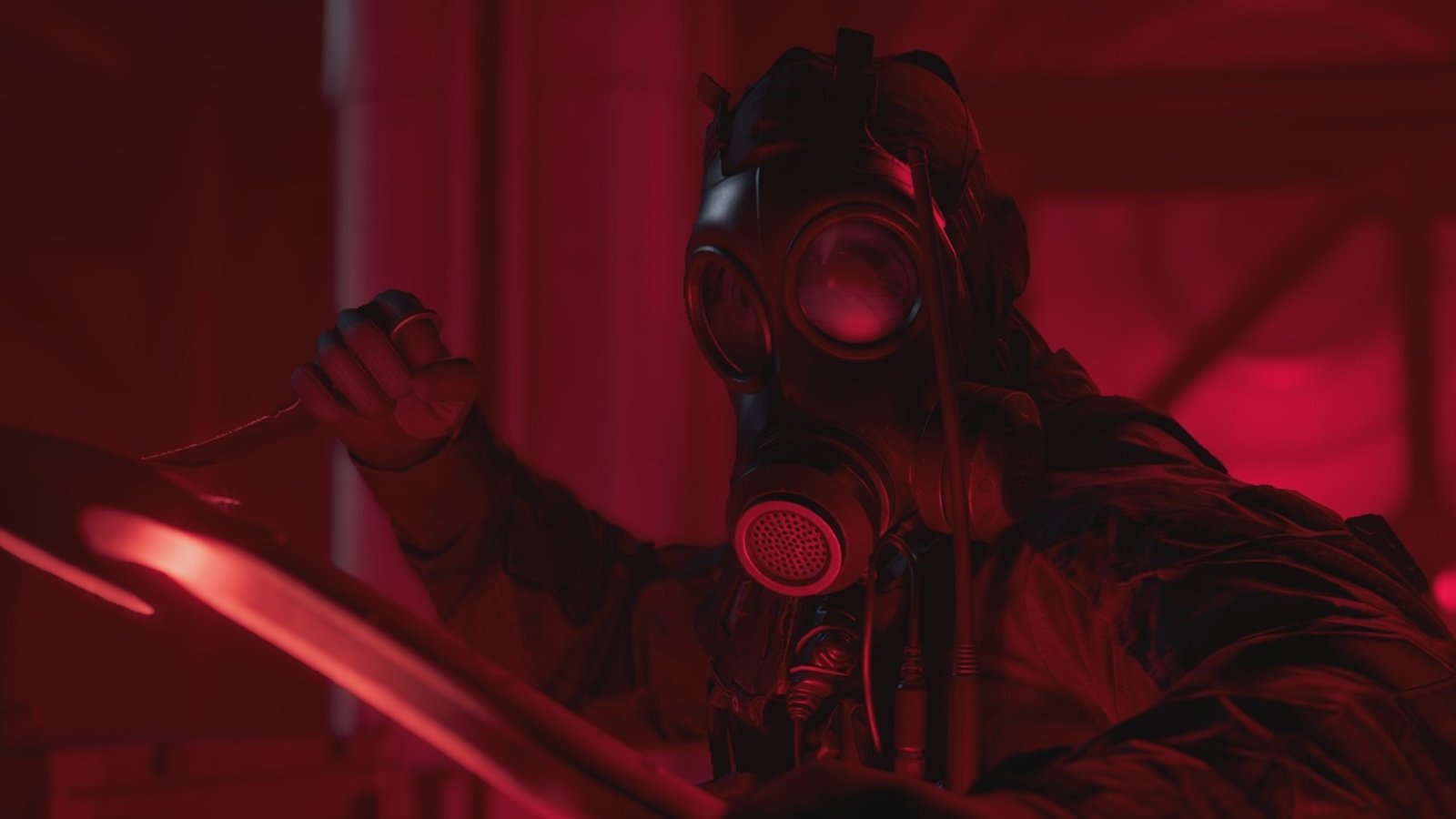
Resident Evil Requiem has excellent DualSense support on PS5. Capcom built on the foundation of Resident Evil Village and Resident Evil 4 Remake and expanded it significantly.
Adaptive triggers add distinct resistance per weapon type. The shotgun has a heavy, deliberate pull. The pistol is lighter but still tactile. Grace’s bolt cutters and improvised weapons each feel different through the trigger. This is not cosmetic. The physical feedback helps you internalise reload timing and fire rates without looking at the UI.
However, haptic feedback is where Requiem shines. The Girl’s footsteps vibrate through the controller before you see her. Rain patterns change depending on whether you are inside or outside. Environmental audio translates to directional haptic cues that genuinely help with spatial awareness.
If you are using a TCP custom controller with digital triggers, you trade adaptive trigger immersion for faster actuation. Digital triggers fire the instant you touch them, which is an advantage for Leon’s combat sections, where split-second reactions determine whether a parry lands. The trade-off is personal. Keep adaptive triggers on for Grace’s horror sections and consider digital triggers for Leon’s action sequences.
For players who find the DualSense heavy during long sessions, TCP’s controller modifications include the option to remove the vibration motors, reducing the controller’s weight by 60g. You lose haptic feedback but playing for hours on end can get uncomfortable real quick.
Resident Evil Requiem’s dual-protagonist design creates a specific set of controller challenges that stock DualSense hardware was not built to address.
Leon’s parry window is tight. You need to press L1 at the exact moment an attack lands. On a standard controller, your index finger is already managing aim (L2) and guard (L1) simultaneously. Mapping parry to a back button means your middle finger handles it without lifting your thumbs from the sticks. You maintain full camera control during the most critical moments of combat.
Grace benefits equally. Mapping Quick Heal to a back button means you can heal while running without stopping to navigate the D-pad. In a game where The Girl can close the distance in seconds, that time saved is the difference between survival and a death animation.
TCP’s ClickSticks provide two back buttons on the TCP Ultimate controller with a flush mechanical design that eliminates accidental presses.
As we covered in the sensitivity section, a dead zone is a compromise. Higher dead zones mask stick drift but reduce responsiveness. Hall Effect and TMR analogue sticks are contactless and cannot drift. This means you can run a dead zone of 3 to 5 with full confidence that idle drift will never occur.
In practical terms, this translates to faster initial camera response when you move the stick. In Grace’s sections, where every millisecond of reaction time matters when The Girl appears, that reduced dead zone is a measurable advantage.
TCP’s Interchangeable Analogue System (IAS) lets you swap stick heights without tools. A taller right stick gives more precise aiming for Grace’s first-person headshots. A shorter stick provides faster, snappier movement for Leon’s third-person combat. Being able to physically change your stick height when the game switches protagonists is a level of customisation no software setting can replicate.
Configure your ideal setup in the custom PS5 controller builder.
| Setting | Grace (First-Person) | Leon (Third-Person) |
| Camera Speed (H) | 6–7 | 5–6 |
| Camera Speed (V) | 5–6 | 4–5 |
| Aim Sensitivity | 5–6 | 4–5 |
| Acceleration | 6–7 (High) | 5 (Medium) |
| Dead Zone | 5–7 | 5–7 |
| Camera Perspective | First-Person (default) | Third-Person (default) |
| Aim Assist | On, Follow, 3–4 | On, Follow, 3–4 |
| Reticle Deceleration | On | On |
| Movement Type | Walk | Walk |
| Run Type | Hold | Hold |
| Motion Blur | Off | Off |
| Camera Wobble | 0 | 0 |
| Dot Sight Perspective | On | On |
| Repeated Input Type | Hold | Hold |
| Reset Scope Magnification | Off | Off |
| Adaptive Triggers | On (immersion) | Personal preference |
Start with these values and fine-tune from there. Give yourself at least one full encounter after changing settings before judging them. The difference between stock defaults and an optimised setup is immediately noticeable.
If stick drift is forcing you to compensate with high dead zones, TCP’s stick drift repair service can replace your worn potentiometers with Hall Effect or TMR sticks that never drift, starting from £24.
For more controller tips that apply across all PS5 games, our 10 hidden PS5 controller tips and tricks guide is worth a read, and if you are playing other shooters alongside Resident Evil Requiem, check out our settings guides for ARC Raiders and Battlefield 6.

We know. We know. The latest Resident Evil game came out weeks ago (February 27, 2026), so our best PS5 controller settings for Resident Evil

Sony has released over 30 limited edition PS5 DualSense controller colours and theemes the PS5 launched in November 2020. Some are genuinely stunning, but you
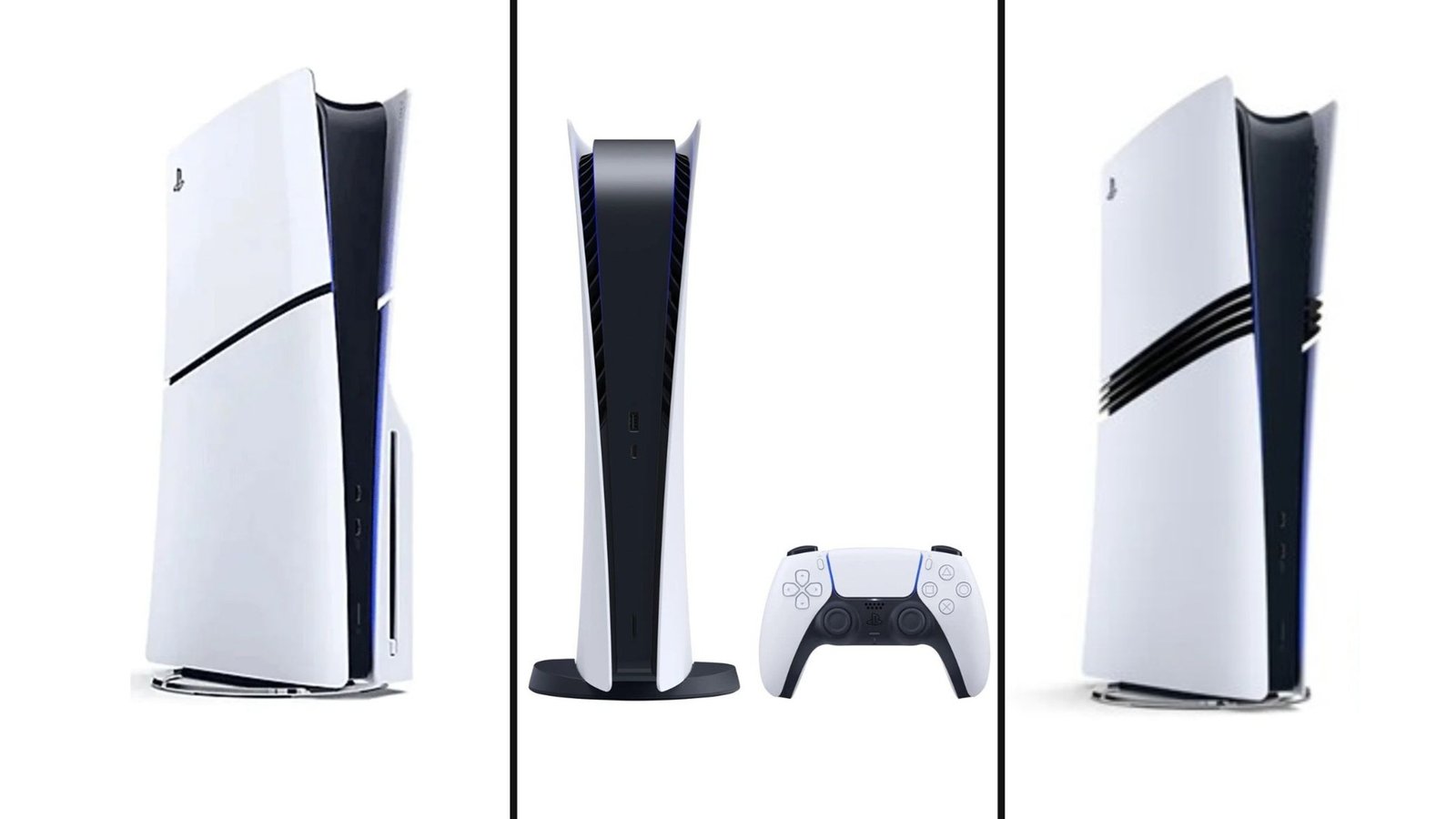
Not so fun fact: PS5 pricing has changed more in the last 18 months than in any previous PlayStation generation. What launched at $499 in
The PS5 Pro costs £699.99. That is a lot of money for a mid-generation upgrade. Sony knows this, which is why the console launched with
No comment yet, add your voice below!