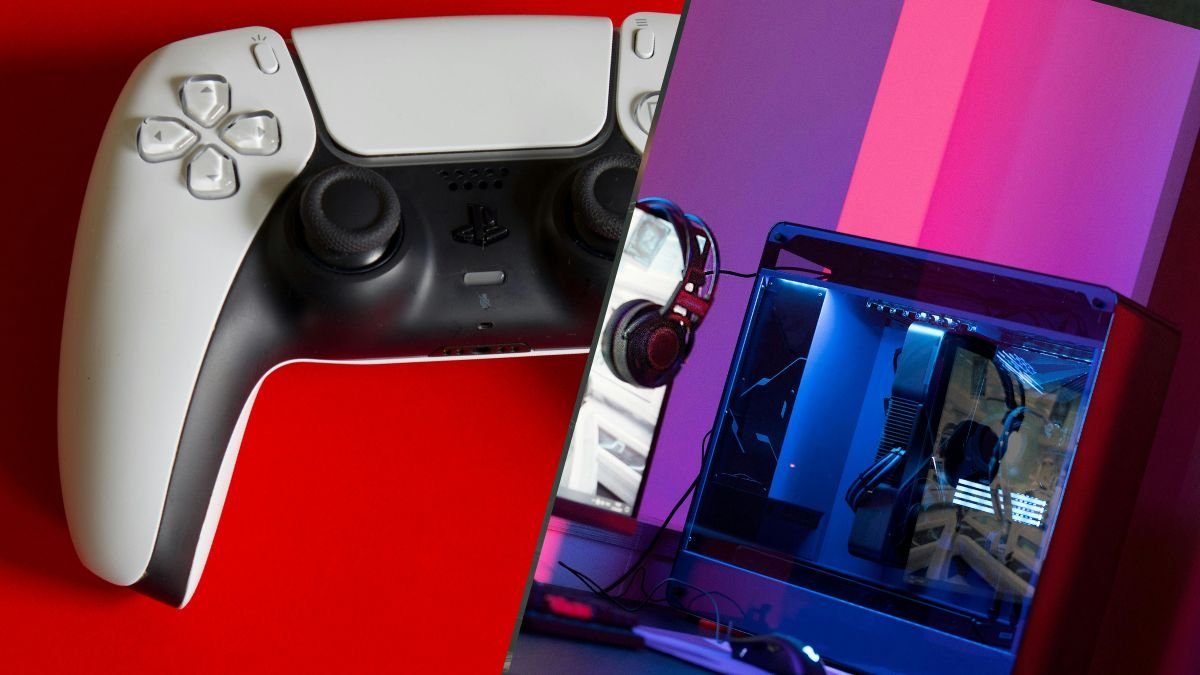
How to Use a PS5 Controller on PC: The Complete Guide for 2026
The PS5 DualSense is one of the best controllers ever made. It has adaptive triggers, haptic feedback, a built-in speaker, a touchpad, and a comfortable


TCP has repaired thousands of DualSense controllers. We know what breaks, how often it breaks, and why. So when we talk about PS5 controller problems, it’s not just based on theory or what we read on the internet. It’s information based on what we see on our workbench every single day.
The 12 problems below are ranked roughly by how frequently we encounter them. Stick drift is number one by a wide margin. Unresponsive buttons and adaptive trigger failures follow. Some of these problems have genuine DIY fixes that work. Others require professional repair. We will tell you honestly which is which.
To help address these challenges, this guide explores the most common PS5 controller problems. We’ve updated this guide to reflect current information as of March 2026, including coverage of the DualSense controllers that ship with the PS5 Slim and PS5 Pro. If you want to skip ahead to a specific problem, use the quick diagnosis table below.
| Symptom | Most Likely Cause | DIY Fix? | Problem # |
| Stick moves on its own | Worn potentiometer | Temporary only | #1 Stick Drift |
| Buttons not registering | Debris or worn pads | Sometimes | #2 Unresponsive Buttons |
| Triggers feel loose or grindy | Broken spring or motor | Rarely | #3 Adaptive Trigger Failure |
| Controller disconnects randomly | Bluetooth interference | Usually | #4 Connectivity Problems |
| No orange light when charging | Faulty cable or port | Usually | #5 Charging Issues |
| Battery dies within 2-3 hours | Degraded battery | No (battery swap) | #6 Fast Battery Drain |
| Mic or speaker silent | Firmware or hardware | Sometimes | #7 Mic/Speaker Not Working |
| Firmware update freezes | Corrupted update | Usually | #8 Firmware Update Failures |
| Touchpad unresponsive | Connection ribbon | Rarely | #9 Touchpad Malfunctions |
| Random vibrations or heat | Software or motor fault | Sometimes | #10 Overheating/Vibrations |
| Controller won’t power on | Dead battery or board | Sometimes | #11 Won’t Power On |
| Cracked shell, broken triggers | Physical impact | No | #12 Physical Damage |
Here is a list of the 12 most common PS5 controller problems users experience:

Your character moves without input. The camera slowly rotates on its own. Menu selections scroll without you touching the stick. This is the single most common DualSense problem. It accounts for roughly 60% of the controllers that come through our repair shop.
The DualSense uses ALPS potentiometer analogue sticks. A metal wiper scrapes along a carbon-film track to detect the stick position. Over time, the wiper physically erodes the carbon track, causing inaccurate voltage readings. This is mechanical wear. It will happen to every controller that uses potentiometer sticks, typically within 12 to 18 months of regular use. For a detailed technical explanation, our guide to PS5 controller stick drift covers the mechanics in full.
1. Clean around the stick base with compressed air and 90%+ isopropyl alcohol. Rotate the stick while cleaning. This works for drift caused by debris contamination.
2. Reset the controller via the pinhole button on the back (hold 5 seconds with a pin).
3. Update controller firmware via Settings > Accessories > Controller.
4. Increase the dead zone in game settings to mask mild drift temporarily.
Honest assessment: cleaning works for early, contamination-based drift. If the drift returns within days, the potentiometer is worn. No cleaning will fix that.
If DIY cleaning does not permanently resolve the drift, the potentiometer needs to be replaced. TCP’s stick drift repair service starts at £24 for standard replacement or £30 to £35 for Hall Effect or TMR upgrades that eliminate drift entirely. TMR and Hall Effect sticks are contactless and will never develop drift. They come with a 12-month warranty. For a comparison of these technologies, see our Hall Effect vs TMR guide.
One or more face buttons (X, Circle, Square, Triangle), D-pad directions, or bumpers (L1/R1) fail to register presses, register intermittently, or feel mushy. This is the second most common problem we see, accounting for roughly 15% of repairs.
The most common cause is debris buildup beneath the button membrane. Food particles, dust, and skin oils work their way under the buttons over time. Less commonly, the conductive rubber pads beneath the buttons wear out from heavy use, losing their ability to make clean contact with the circuit board.
1. Power off the controller. Clean around the affected button edges with compressed air. Work the button up and down while spraying to dislodge trapped debris.
2. Apply a small amount of isopropyl alcohol around the button edge and press the button repeatedly to work the alcohol beneath the membrane.
3. Reset the controller (pinhole button, 5 seconds).
4. Update firmware in case a software glitch is misinterpreting inputs.
If cleaning does not resolve the issue, the conductive pads likely need replacement. This requires opening the controller and soldering in some cases. TCP’s button repair service handles this professionally with tested results.
Some effective methods to fix the PS5 controller unresponsive buttons issue and restore functionality are as follows.
The L2 or R2 trigger feels loose, grindy, unresponsive, or stuck. Adaptive trigger resistance disappears in games that support it. In our shop, this is the third most common problem, and it is almost always mechanical rather than software-related.
The adaptive trigger mechanism uses a small motor and a worm gear system to create resistance. Heavy or forceful trigger use, especially in shooters where players repeatedly slam R2, can dislodge the tension spring or strip the worm gear teeth. Once the mechanical components are damaged, no software fix will restore them.
1. Check game settings first. Verify that adaptive triggers are enabled in both the PS5 system settings (Settings > Accessories > Controllers > Trigger Effect Intensity) and the individual game settings.
2. Reset the controller.
3. Update firmware.
If the trigger physically feels different (grinding, no resistance, loose travel), the issue is mechanical and DIY options are extremely limited.
Adaptive trigger repair requires disassembly and motor/spring replacement. This is one of the problems we strongly recommend professional repair for. TCP’s trigger repair service replaces worn components and restores full trigger function.
The controller disconnects randomly during gameplay, fails to pair via Bluetooth, or drops connection intermittently. About 5% of our repairs involve connectivity issues, though many resolve without professional intervention.
Bluetooth interference from nearby wireless devices, corrupted pairing data, outdated firmware, or a faulty Bluetooth antenna inside the controller.
1. Reconnect via USB cable and press the PS button to re-pair.
2. Reset the controller (pinhole button, 5 seconds).
3. Remove nearby Bluetooth interference (phones, headsets, other controllers).
4. Try a different USB cable and port.
5. Update firmware.
If the controller still drops connection after all DIY steps, the internal Bluetooth antenna may be damaged. This requires professional diagnosis and component-level repair. In our experience, connectivity issues that survive a full reset and firmware update are almost always hardware failures rather than software glitches.
No orange light when plugged in, charging stops partway, or the controller takes significantly longer than the normal 3-hour charge time. Some controllers show full charge but die within minutes of disconnecting from the cable.
Faulty USB-C cable (charge-only cables are a common culprit), debris in the charging port, a damaged USB-C port on the controller, or a degraded internal battery.
1. Try a different USB-C cable (ensure it supports data transfer, not charge-only).
2. Clean the USB-C port with compressed air.
3. Connect directly to the PS5 front USB ports (not a hub or wall adapter).
4. Reset the controller.
If the issue persists with a known-good cable, the USB-C port or internal battery may need replacement. Both require opening the controller.
The controller dies within 2 to 4 hours despite a full charge. The DualSense’s battery life is not exceptional to begin with (7 to 8 hours under normal use), but anything under 4 hours indicates a problem.
Degraded lithium battery (especially on launch-era controllers now 5+ years old), high-drain features running constantly (haptic feedback, adaptive triggers, mic, speaker), or background firmware processes consuming power.
1. Reduce vibration intensity: Settings > Accessories > Controllers > Vibration Intensity > Weak.
2. Lower trigger effect intensity to Weak or Off.
3. Disable the built-in microphone: Settings > Sound > Microphone.
4. Manually power off the controller when not in use (hold PS button > Turn Off Controller).
5. Update firmware.
If battery life does not improve after reducing power consumption, the battery itself is degraded and needs physical replacement. This is a common repair for controllers over 2 years old. Launch-era DualSense controllers from 2020 and 2021 are now entering the age range where battery degradation becomes unavoidable, regardless of usage habits. Lithium-ion batteries have a finite number of charge cycles, and 4 to 5 years of regular use pushes most past their effective lifespan.
The built-in microphone does not pick up voice, or the controller speaker produces no audio in games that support it.
Muted mic (the DualSense has a dedicated mute button on the front), incorrect audio settings routing audio to a headset instead of the controller, firmware bugs, or a physically damaged mic/speaker component.
1. Press the mute button on the front of the controller (below the PS button). An orange light means the mic is muted.
2. Check Settings > Sound and verify that the controller speaker and microphone are enabled and not overridden by a headset.
3. Reset the controller and update firmware.
If the mic/speaker hardware is physically damaged, component replacement is required.
The firmware update process freezes, fails partway, or the controller becomes unresponsive during an update.
Interrupted USB connection during the update, insufficient battery charge, or a corrupted update file.
1. Connect via USB directly to the PS5 (not a hub).
2. Ensure the controller has at least 50% battery before updating.
3. If the update freezes, hold the PS button for 15 seconds to force power off. Reconnect via USB and retry.
4. If the controller is completely unresponsive, reset it via the pinhole button, then reconnect and retry.
A bricked controller from a failed firmware update is rare but does happen. Professional repair can sometimes recover the firmware through direct board connection.
The touchpad does not register swipes or taps, or registers phantom inputs.
A loose ribbon cable connection inside the controller (often from a drop), moisture damage, or a cracked touchpad sensor.
1. Reset the controller.
2. Clean the touchpad surface with a dry microfibre cloth.
3. If the touchpad stopped working after a drop, the internal ribbon cable may have dislodged. Reseating it requires opening the controller.
Touchpad issues almost always require opening the controller. If you are not comfortable with disassembly, professional repair is the safer option.
The controller feels unusually warm during use, or the vibration motors activate randomly without in-game triggers.
Software glitches sending incorrect haptic signals, a stuck vibration motor, or charging while playing (which generates additional heat).
1. Reset the controller.
2. Update firmware.
3. Avoid using the controller while it is charging.
4. If random vibrations persist, disable haptic feedback temporarily (Settings > Accessories > Controllers) to confirm whether the issue is software or hardware.
If the vibration motor is physically stuck or the controller overheats consistently during normal use, internal inspection is necessary.
No response when pressing the PS button. No light bar activity. The controller appears completely dead.
Completely depleted battery, a frozen firmware state, or a damaged motherboard. This is less common than other problems but alarming when it happens.
1. Connect via USB to the PS5 and leave it charging for at least 30 minutes without pressing anything.
2. After charging, press the PS button. If no response, reset via the pinhole button and try again.
3. Try a different USB cable to rule out a dead cable.
If the controller does not respond after charging and resetting, the motherboard or battery may be dead. This requires professional diagnosis.
Cracked shell, snapped trigger, broken bumper, or loose internal components rattling inside the controller. Usually the result of a drop, throw, or impact.
Physical impact. The DualSense shell is durable but not indestructible. Drops onto hard surfaces, especially from desk height or above, can crack the shell, dislodge internal components, or snap trigger mechanisms.
Replacement shells are available online, but swapping a shell requires full disassembly and reassembly of every internal component. This is advanced-level repair.
Physical damage is the one category where DIY repair is rarely worth the risk for non-technical users. Professional repair ensures that internal components are properly reconnected and tested after shell or trigger replacement. We see a surprising number of controllers that arrive for repair with additional damage caused by a previous DIY attempt. If you are not comfortable with precision screwdrivers, ribbon cables, and small plastic clips, let someone who is handle it.
The short answer: no. Not the important ones.
The DualSense controllers that ship with the PS5 Slim (November 2023) and PS5 Pro (November 2024) use the same ALPS potentiometer analogue stick modules as the original DualSense from 2020. The stick drift problem is unchanged. The mechanical wear characteristics are identical. Controllers from 2024 and 2025 arrive in our shop with the same drift patterns as controllers from 2021.
Adaptive trigger durability has not visibly improved either. The same worm gear and motor assembly is used across all DualSense revisions. Sony has not publicly disclosed any changes to the internal trigger mechanism.
Battery life across the Slim and Pro DualSense models is roughly equivalent to the original: 7 to 8 hours under normal conditions. No measurable improvement.
The DualSense Edge (£199.99) addresses some concerns through replaceable stick modules and adjustable trigger travel, but the replacement stick modules are still ALPS potentiometers. They will eventually drift. Sony’s selling replacement modules is an acknowledgement that the problem exists, not a solution.
If you want a permanent fix for stick drift, Hall Effect or TMR sticks from TCP’s modifications page are the only proven solution. These contactless stick modules work in any DualSense revision, whether it shipped with a launch PS5, a Slim, or a Pro.
One positive note: Sony’s build quality on shell construction, button membranes, and Bluetooth connectivity has been consistent across all revisions. The DualSense is not a badly built controller. It is a well-built controller with one critical design choice (potentiometer sticks) that guarantees a specific failure mode over time. Everything else holds up well.
Some DualSense problems respond to DIY cleaning and firmware updates. Others require opening the controller, desoldering components, and replacing hardware.
Here is what TCP offers for the problems that need professional attention.
All TCP repairs include free return postage. Standard repairs carry a 3-month warranty. Hall Effect and TMR stick upgrades carry a 12-month warranty. Turnaround is typically 3 to 5 working days from receipt. You send us a broken controller. We send you back one that works.
If your controller has accumulated enough problems that repair no longer makes financial sense, the TCP Pro controller (£135 to £140) includes TMR drift-proof sticks, digital triggers, and ClickSticks back buttons from day one. It is built on a genuine Sony DualSense with a 12-month warranty on all upgrades.
The DualSense is a well-designed controller with known weak points. Stick drift is the most common and the most predictable. Trigger failures and button issues follow. Most of the remaining problems can be resolved with firmware updates, resets, and basic cleaning.
Stop troubleshooting. Start fixing. TCP’s repair services exist because we have seen every DualSense problem in this guide thousands of times. We know what fixes them. Send us your controller and get it back working.

The PS5 DualSense is one of the best controllers ever made. It has adaptive triggers, haptic feedback, a built-in speaker, a touchpad, and a comfortable

We know. We know. The latest Resident Evil game came out weeks ago (February 27, 2026), so our best PS5 controller settings for Resident Evil
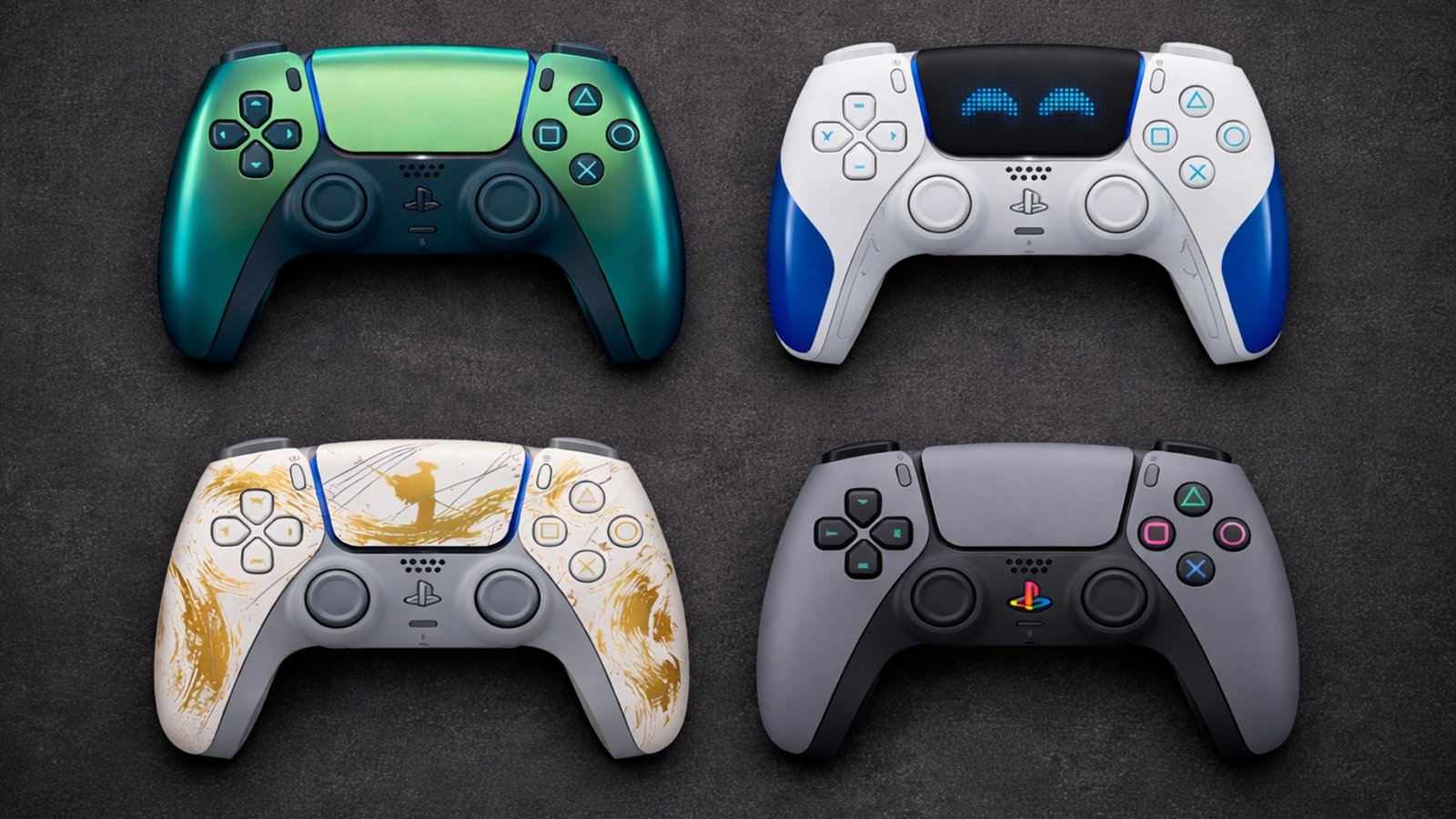
Sony has released over 30 limited edition PS5 DualSense controller colours and theemes the PS5 launched in November 2020. Some are genuinely stunning, but you
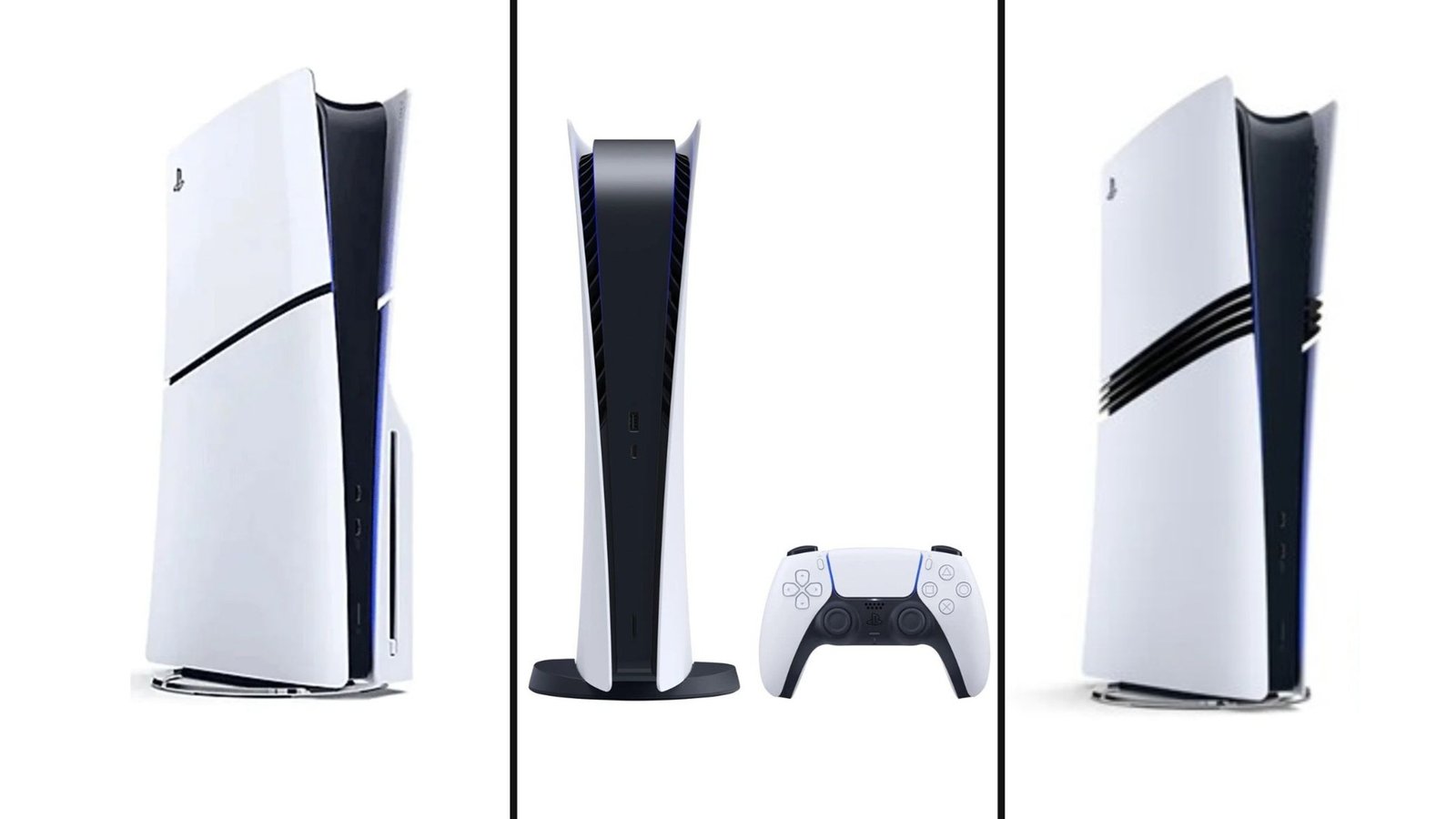
Not so fun fact: PS5 pricing has changed more in the last 18 months than in any previous PlayStation generation. What launched at $499 in
1 Comment
[…] Controller not charging: Sometimes, your controller will not charge at all. This can happen if the cable is broken, the battery is old, or the charging port does not work. […]