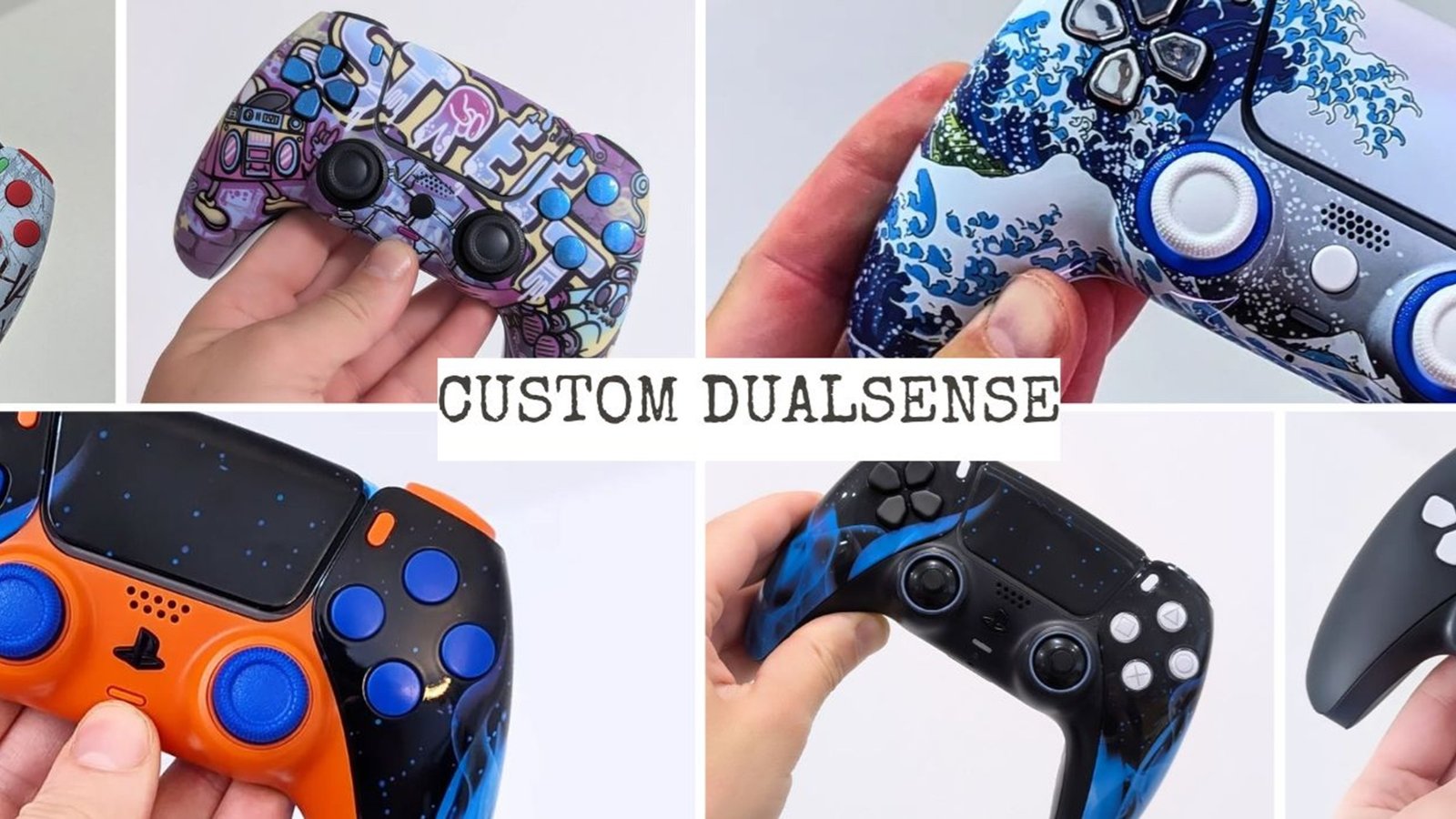
Is a Customisable PS5 Controller Actually Worth It in 2026? An Honest Answer
Customisable PS5 controllers have been around for years. Unfortunately, most of them weren’t worth it. Overpriced shells with a fresh coat of paint, a couple


Your PS5 controller not working is basically a nightmare scenario, especially with the holiday season right around the corner. You’ve got new games waiting under the tree, friends coming over for some couch co-op, and that one cousin who insists on playing Fortnite for six hours straight. The last thing you need is stick drift ruining your aim or triggers that refuse to cooperate.
Here’s the good news: most controller issues have fixes you can try right now at home. And if your DualSense problems go deeper than a quick reset can solve? Getting repairs done before the holiday rush could save you weeks of waiting in January.
Let’s walk through everything—from the quick fixes you can knock out in ten minutes to knowing when it’s time to call in the professionals.

There’s a reason December is when controllers finally give up. Extended gaming sessions during the holiday break push hardware to its limits. That stick drift you’ve ignored for a long time? It becomes impossible to overlook when you’re playing for five hours straight.
Then there’s the multiplayer factor. When friends and family gather around for gaming marathons, your controllers see more action in a week than they typically do in a month. New game releases compound the problem. Holiday titles often push hardware in demanding ways, and adaptive triggers get serious workouts in games designed to showcase them. If your controller has been hanging on by a thread, a trigger-intensive shooter or racing game might be the final straw.
Here’s what makes this timing particularly frustrating: repair services are especially busy in late December and January. Everyone realizes their controller problems at the same time, leading to longer turnaround windows when you least want them. Getting ahead of the rush means getting back to gaming faster.
Before you start worrying about repairs, try these troubleshooting steps. You’d be surprised how often they work when you find your PS5 controller not working.
The classic “turn it off and on again” approach is simple and straightforward. For a DualSense soft reset, press the PS button, navigate to Accessories, select your controller, and choose Turn Off. Wait fifteen seconds, then press the PS button to reconnect.
If that doesn’t cut it, the hard reset is your next move. Turn off your PS5 completely and disconnect the controller from any cables. Find the small reset button hole on the back of the controller, near the Sony logo on the right side. Use a paperclip or SIM ejector tool to press and hold it for at least five seconds. You’ll feel a small click. Then connect via USB-C cable and press the PS button to re-sync.
Outdated firmware causes more connectivity issues than people realize. On PS5, navigate to Settings > Accessories > Controller (General) > DualSense Wireless Controller Device Software. If an update is available, install it immediately.
Debris around buttons and stick bases is often the culprit behind inconsistent inputs. Grab some compressed air and isopropyl alcohol—70% or higher works great.
Start with compressed air in short bursts around the analog stick bases, moving the sticks while you spray to dislodge debris underneath. Dampen a cotton swab with isopropyl alcohol and gently clean around buttons and triggers. Let everything dry for two to three minutes before testing.
For more detailed DIY guidance, our PS5 controller DIY repair tips checklist walks through additional troubleshooting steps worth trying.
Stick drift is the most common controller complaint we see, and the holidays make it worse. All those extended sessions accelerate wear on potentiometers that were already on borrowed time.
The simplest test? Launch any game that uses analog sticks, set your controller down without touching it, and watch the screen. If your character moves, the camera drifts, or menus scroll on their own—that’s drift.
For more precise diagnosis, online calibration tools like gpadtester.com let you visualize exactly what your sticks are reporting. Connect via USB to a PC, and you’ll see whether your sticks return to the true center or wander off on their own. Watch for erratic jittering even when the stick appears centered.
In-game, stick drift often shows up as slow character rotation, aiming that pulls in one direction, or camera movement you didn’t initiate. The worse it gets, the more it affects gameplay—eventually making precision aiming nearly impossible.
Here’s where things get interesting. If you’re already sending your controller in for stick drift repair, why not make it drift-proof while you’re at it?
Standard potentiometer-based analog sticks will eventually develop drift again. But magnetic sensor technology changes that equation entirely. Hall Effect analog stick upgrades use magnets instead of physical contacts, eliminating the wear that causes drift in the first place. The sensor simply reads your input cleanly, day after day.
For players who want even better precision, TMR joysticks have more sensitive magnetic sensors that stay accurate under intense use.
Both options come with a 12-month warranty, compared to three months for standard analog repairs. You’re essentially future-proofing your controller.
Triggers and buttons take serious abuse, especially during competitive play.
The DualSense’s adaptive triggers are genuinely impressive technology—until they stop working. Common causes include worn springs, misaligned gears, or mechanisms that have simply given out under heavy use. Shooters and racing games are particularly hard on adaptive triggers.
Try this first: go to Settings > Accessories > Controller (General) > Trigger Effect Intensity and set it to Off or Weak temporarily. If your triggers work normally with adaptive features disabled, the adaptive mechanism itself is the issue.
Face buttons that don’t register consistently often have debris underneath or contact pad degradation. Start with compressed air and careful cleaning around each button’s edges. If cleaning doesn’t help, the issue is likely worn contacts that need professional attention.
Our button repair service covers unresponsive face buttons, D-pad issues, and touchpad problems for £24 with a 3-month warranty.
Here’s something worth considering if you’re upgrading anyway: digital triggers reduce travel distance to just 1.5mm, giving you near-instant actuation. This modification removes the adaptive trigger functionality in favor of speed
Nothing’s more frustrating than a controller that won’t stay connected or won’t charge at all.
Wireless dropouts usually come down to interference. Wi-Fi routers operating on 2.4GHz compete with Bluetooth signals, as do other wireless devices nearby. USB 3.0 ports are known to cause electromagnetic interference that affects Bluetooth.
Start by moving closer to your console and switch your router to 5GHz if possible. Disconnect other Bluetooth devices temporarily. If you’re using a Bluetooth adapter on PC, try a USB 2.0 port instead of 3.0, or use an extension cable to position it away from other devices.
Still dropping? Re-pair the controller from scratch. On PS5, go to Settings > Accessories > General > Bluetooth Accessories and remove the controller, then re-pair by holding the Create and PS buttons simultaneously until the light bar flashes.
Before assuming the worst, test with a different USB-C cable. Cables fail more often than ports do. Try a different USB port on your console as well.
If multiple cables don’t work, inspect your USB-C port with a flashlight. Debris buildup is incredibly common and blocks proper connection. Clean carefully with compressed air and a wooden toothpick—never metal, which can cause damage.
Battery degradation shows specific symptoms: rapid drain after full charge, random shutoffs during play, or only working while plugged in. Controllers typically handle 300-500 charge cycles before capacity noticeably declines. If your controller is two to three years old with heavy use, the battery might be the culprit.
USB-C port damage is one of our most common repairs. Check out our controller repair services for charging-related fixes.
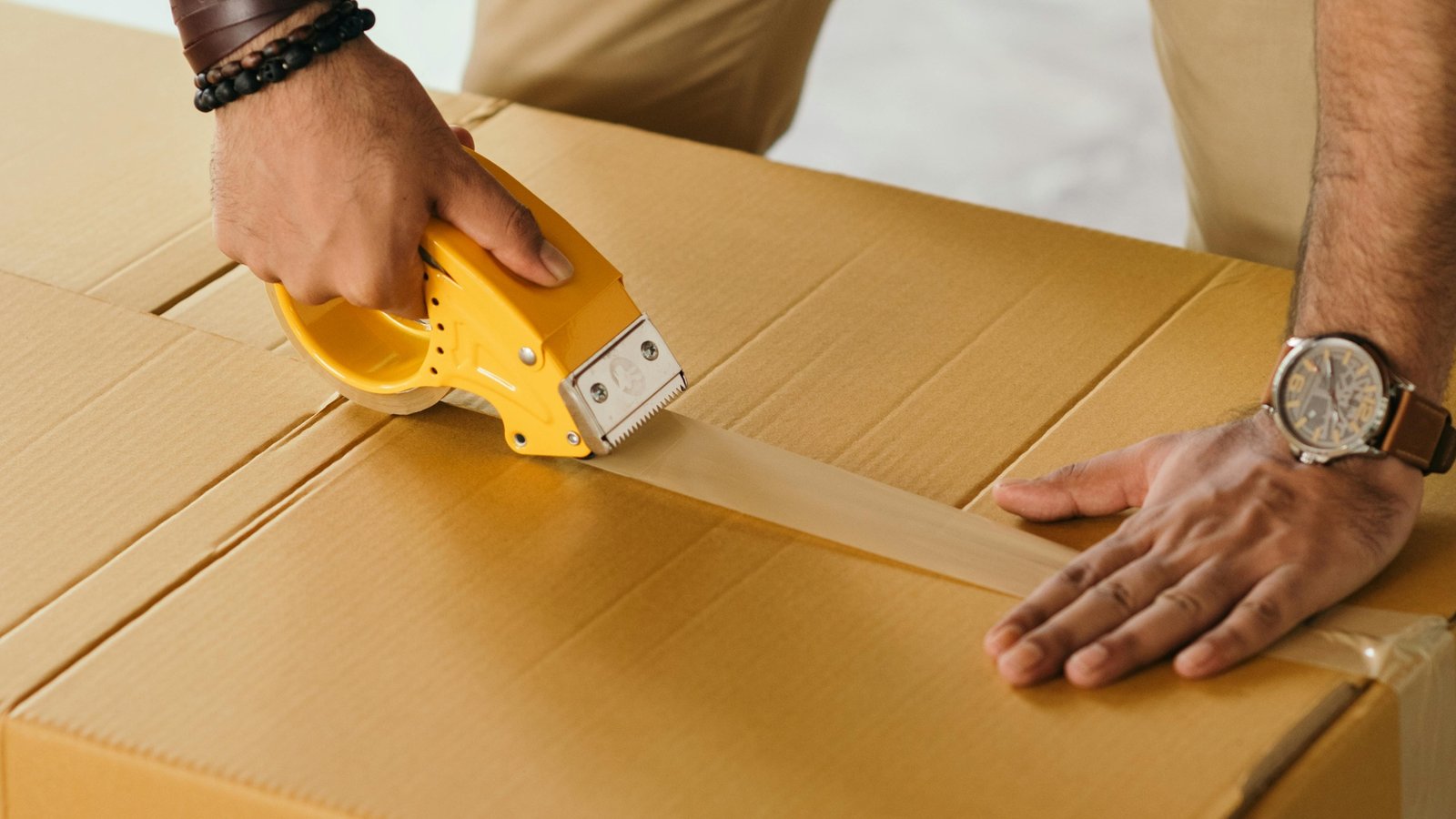
The ultimate fix for a PS5 controller not working is to send it in. But during the holidays, timing matters. The good news? Our typical turnaround is 2-3 business days once your controller arrives. Factor in shipping both directions, and you’re looking at roughly a week total under normal circumstances.
Rush service is available when you absolutely need faster turnaround. Holiday scheduling fills up quickly, though. Our December slots book fast, and January sees our biggest backlog of the year as everyone realizes their controllers died over Christmas.
The smart move? Get repairs scheduled now. A controller shipped this week gets back to you before the holiday gaming marathons begin. Wait until January, and you’re competing with everyone else who waited.
Ready to get your controller fixed before the holidays? Contact us to discuss your repair needs. We’re here Monday through Friday, 9 am to 5 p,m and we’ll get you back in the game.

Customisable PS5 controllers have been around for years. Unfortunately, most of them weren’t worth it. Overpriced shells with a fresh coat of paint, a couple
If you’ve ever looked at your stock DualSense and thought it could use some personality, you’re not alone. Custom PS5 controllers have exploded in popularity.
Extraction shooters, perhaps more so than typical first-person shooters, punish messy inputs. Not because it’s “hardcore” for the sake of it, but because fights don’t

“Exclusive” gets messy these days because a lot of PlayStation’s biggest games also land on other platforms, particularly the PC, and sometimes, even the Xbox,
No comment yet, add your voice below!