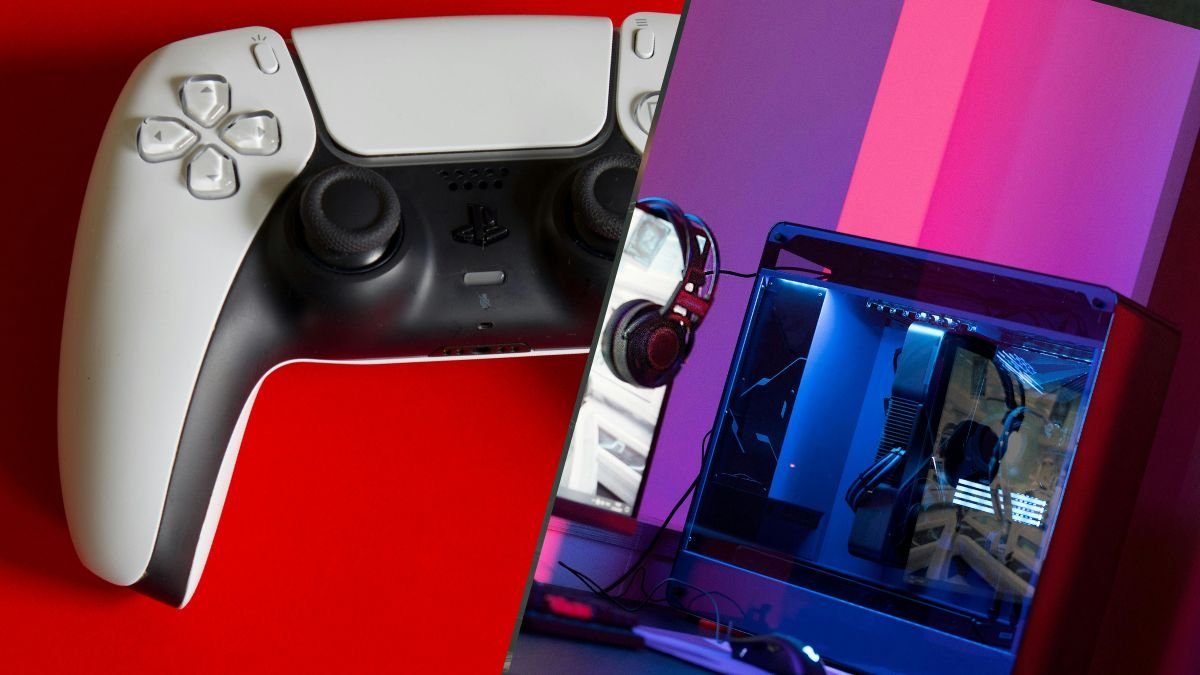
How to Use a PS5 Controller on PC: The Complete Guide for 2026
The PS5 DualSense is one of the best controllers ever made. It has adaptive triggers, haptic feedback, a built-in speaker, a touchpad, and a comfortable

The PS5 DualSense is one of the best controllers ever made. It has adaptive triggers, haptic feedback, a built-in speaker, a touchpad, and a comfortable design that fits most hand sizes. The problem is that Sony designed it for PlayStation, much like every PlayStation controller before it. Because of this, you need to jump through a few hoops to use a PS5 controller on PC. The good news? It works.
Yes. You can use a PS5 controller on PC. Windows 10 and 11 recognise the DualSense natively over USB and Bluetooth, Steam has full controller support built in, and third-party tools like DS4Windows and DualSenseX unlock features that Windows alone cannot.
Whether you are playing through Steam, the Epic Games Store, GOG, or standalone launchers, you can use a PS5 controller on PC.
This guide covers everything you need to know to use a PS5 controller on PC: wired and wireless connections, Steam configuration, non-Steam game setup, adaptive triggers and haptic feedback on PC, firmware updates, troubleshooting, and a curated list of games that support DualSense features natively.
If you own a PS5 controller and a PC, this is the only guide you need to use a PS5 controller on PC.
Before connecting your DualSense to your PC, make sure you have the following:
One important note: make sure your DualSense firmware is up to date. Outdated firmware can cause connection issues and missing features. However, don’t worry too much. We also cover how to update firmware later in this guide.
Wired USB is the simplest and most reliable way to use a PS5 controller on PC. It provides the lowest input latency and does not require Bluetooth. If you are playing competitive games where every millisecond counts, wired is the way to go.
That is it. No software required. No configuration. The controller is ready to use in any game that supports controllers through DirectInput or XInput. Steam will detect it automatically if the application is running.
If Windows does not recognise the controller, try a different USB port (USB 3.0 or higher is recommended) or a different cable. Some cheap USB-C cables are charge-only and do not carry data.
Wireless Bluetooth gives you freedom to sit back from your desk or play on a TV connected to your PC. The trade-off is slightly higher input latency compared to wired, and some DualSense features (haptic feedback, speaker audio, 3.5mm headphone jack) may not work over Bluetooth, depending on the game and software.
If your PC does not have built-in Bluetooth, a USB Bluetooth adapter (Bluetooth 4.0 or higher) works perfectly. These cost around £5-£10 and plug into any USB port.
To disconnect, hold the PS button for 10 seconds. To reconnect, press the PS button, and the controller will automatically reconnect to the last paired device.
Steam has the best built-in support for the DualSense on PC. If you play most of your games through Steam, this is the only configuration you need.
Steam Input handles the translation between DualSense inputs and game inputs automatically. Most Steam games will display PlayStation button prompts when a DualSense is detected, which is a small but significant quality-of-life improvement over seeing Xbox prompts.
One important caveat: for games that natively support DualSense adaptive triggers and haptic feedback (covered later in this guide), you may need to disable Steam Input for that specific game. Steam Input’s own haptic translation can override the game’s native DualSense implementation. To disable Steam Input per game, right-click the game in your Steam library, go to Properties > Controller, and set the override to “Disable Steam Input.”
Not everything lives on Steam. If you play games through the Epic Games Store, GOG, Ubisoft Connect, the EA App, or standalone launchers, the DualSense still works, but you may need a workaround.
Steam lets you add any executable as a non-Steam game. All you need to do is open Steam, click “Games” in the menu bar, select “Add a Non-Steam Game to My Library,” and browse to the game’s .exe file. Once added, launch the game through Steam, and it will apply your Steam Input controller configuration. This is the easiest method and works for most games.
DS4Windows is a free, open-source tool that makes your DualSense appear as an Xbox 360 or Xbox One controller to Windows. Download it from the official DS4Windows GitHub page. Install the ViGEmBus driver when prompted (this creates the virtual Xbox controller). Connect your DualSense, and DS4Windows will map all inputs to their Xbox equivalents. Games that only support XInput (the Xbox controller standard) will now recognise your DualSense.
DS4Windows also gives you advanced configuration options: custom dead zones, button remapping, touchpad gestures, and light bar colour control.
DualSenseX is a dedicated tool specifically for the DualSense. It supports adaptive trigger configuration, haptic feedback emulation, light bar customisation, and controller-to-keyboard/mouse remapping. A paid version is also available on Steam, with additional features such as Bluetooth audio passthrough and enhanced haptics.
DSX is the most fully featured option if you want to use a PS5 controller on PC and enjoy all its features as if you’re playing on a PS5, but it’s more complex to configure compared to DS4Windows.
For most players, DS4Windows is the better starting point. If you want the full DualSense feature set on non-Steam games, DSX is worth exploring.
| Feature | Steam Input | DS4Windows | DualSenseX (DSX) |
| Price | Free (built into Steam) | Free (open source) | Free basic / Paid on Steam |
| Works with Steam games | Yes (native) | Yes (emulation) | Yes (emulation) |
| Works with non-Steam games | Via ‘Add Non-Steam Game’ | Yes (system-wide) | Yes (system-wide) |
| Adaptive triggers | Partial (game-dependent) | No | Yes (custom + emulated) |
| Haptic feedback | Partial (game-dependent) | Basic rumble | Yes (custom + emulated) |
| Gyro / motion controls | Yes | Yes | Yes |
| Button remapping | Yes | Yes | Yes |
| Light bar control | Yes | Yes | Yes |
| Best for | Steam-only gamers | Non-Steam games, simplicity | Full DualSense features |
The short version: use Steam Input if you play mostly through Steam. Use DS4Windows if you need broad compatibility with non-Steam games. Use DualSenseX if you want the full adaptive trigger and haptic experience on PC.
The DualSense’s signature features, adaptive triggers and haptic feedback, work on PC, but not universally. Support depends on the game, the connection method, and the software you are using.
Adaptive triggers add physical resistance to the L2 and R2 buttons based on in-game actions, including but not limited to drawing a bowstring, accelerating a car, and pulling a trigger in these games. On PC, games must specifically implement DualSense trigger support and most games that support this feature require a wired USB connection.
TLDR; Bluetooth support for adaptive triggers is inconsistent and varies by game.
Haptic feedback replaces traditional rumble with precise, localised vibrations. Rain on a surface, footsteps on gravel, the tension of a wire. On PC, native haptic feedback requires a wired connection for most games. Over Bluetooth, haptic feedback is generally not supported, and the controller falls back to basic rumble. DualSenseX can emulate haptic feedback for games that do not natively support it.
The DualSense has a built-in gyroscope and accelerometer. Steam Input supports gyro aiming natively, and it is excellent for fine-tuning aim in FPS games. To enable it, open your controller configuration in Steam and set the gyroscope to “As Mouse” or “As Joystick.” Gyro aiming gives you the speed of stick movement for large turns and the precision of mouse-like micro-adjustments for aiming. It takes practice, but many PC players swear by it once they adapt.
The list of PC games supporting adaptive triggers and haptic feedback natively continues to grow. Here are some notable titles as of early 2026:
Full DualSense support (adaptive triggers + haptic feedback): Death Stranding Director’s Cut, Metro Exodus Enhanced Edition, Returnal, Deathloop, Spider-Man Remastered, Spider-Man: Miles Morales, Ratchet & Clank: Rift Apart, God of War Ragnarök, The Last of Us Part I, Horizon Forbidden West, Sackboy: A Big Adventure, Silent Hill 2, Final Fantasy XVI, and Final Fantasy VII Rebirth.
Important: for many of these games, you need to disable Steam Input for that specific title and connect via USB to get native DualSense features. If you leave Steam Input enabled, it may override the game’s native implementation with Steam’s own (often inferior) haptic translation.
| Factor | Wired (USB) | Wireless (Bluetooth) |
| Input latency | Lowest (~1ms) | Slightly higher (~4-8ms) |
| DualSense features | Full (haptics, triggers, speaker, headphone jack) | Partial (triggers vary, no haptics/speaker in most games) |
| Battery drain | No drain (powered by USB) | 7-8 hours typical |
| Convenience | Tethered to desk | Full freedom of movement |
| Best for | Competitive play, full features | Casual play, couch gaming |
For competitive gaming, wired is the best way to use a PS5 controller on PC. The latency difference is small but measurable, and you get full access to every DualSense feature. For casual play or couch gaming on a TV-connected PC, Bluetooth is perfectly fine. The latency difference will not be noticeable in most games.
If you want the best of both worlds, a TCP Pro controller with digital triggers provides faster trigger response than the standard DualSense adaptive triggers in competitive scenarios, regardless of connection method.
If your DualSense is not behaving as expected on PC, work through these fixes in order.
Try a different USB port (use a USB 3.0 or higher port) or try a different USB cable (some cables are charge-only). If that does’nt work, restart your PC with the controller already plugged in. Go to Device Manager, find the controller under “Human Interface Devices,” right-click, and select “Update driver.”
Make sure no other device is currently paired to the controller. The DualSense remembers the last device it connected to and will try to reconnect to it. Reset the controller by inserting a pin into the small hole on the back, near the Sony logo, and holding it there for 5 seconds. Then re-enter pairing mode (PS + Create buttons for 3 seconds) and try to use the PS5 controller on your PC again.
Stick drift is not a PC-specific issue, but it is especially noticeable when using the DualSense as a mouse cursor in desktop mode. If your sticks are drifting, increasing the dead zone in Steam Input or DS4Windows can temporarily mask mild drift. For a permanent fix, TCP’s stick drift repair service can replace your worn potentiometers with Hall Effect or TMR sticks that never drift. You can also test your sticks using our stick drift calibration tool.
The DualSense has a built-in speaker and microphone. Windows sometimes sets it as the default audio output, which routes all your PC audio to the tiny controller speaker. Go to Settings > Sound and set your preferred speakers or headset as the default output device.
If you experience noticeable input delay on Bluetooth, check for interference from other wireless devices. Move the Bluetooth adapter closer to the controller (a USB extension cable helps). Consider switching to a wired connection for latency-sensitive games.
If nothing else works when you try to use a PS5 controller on PC, you can try to perform a full reset. Insert a pin into the small pinhole on the back of the controller (near the L2 button) and press for 5 seconds. The controller will turn off. Reconnect via USB and re-pair via Bluetooth to start fresh.
Sony releases periodic firmware updates that improve controller stability, Bluetooth connectivity, and feature support. You can update your DualSense directly from a PC without needing a PS5.
1. Download the PlayStation Accessories app from the Microsoft Store or PlayStation’s website.
2. Connect your DualSense to your PC via USB.
3. Open the PlayStation Accessories app. It will automatically detect your controller and check for available firmware updates.
4. If an update is available, follow the on-screen prompts. Do not disconnect the controller during the update process.
5. Once complete, the app will confirm the update. Your controller is now running the latest firmware.
Keeping firmware up to date is especially important for Bluetooth stability and feature compatibility with newer games whenever you use a PS5 controller on PC.
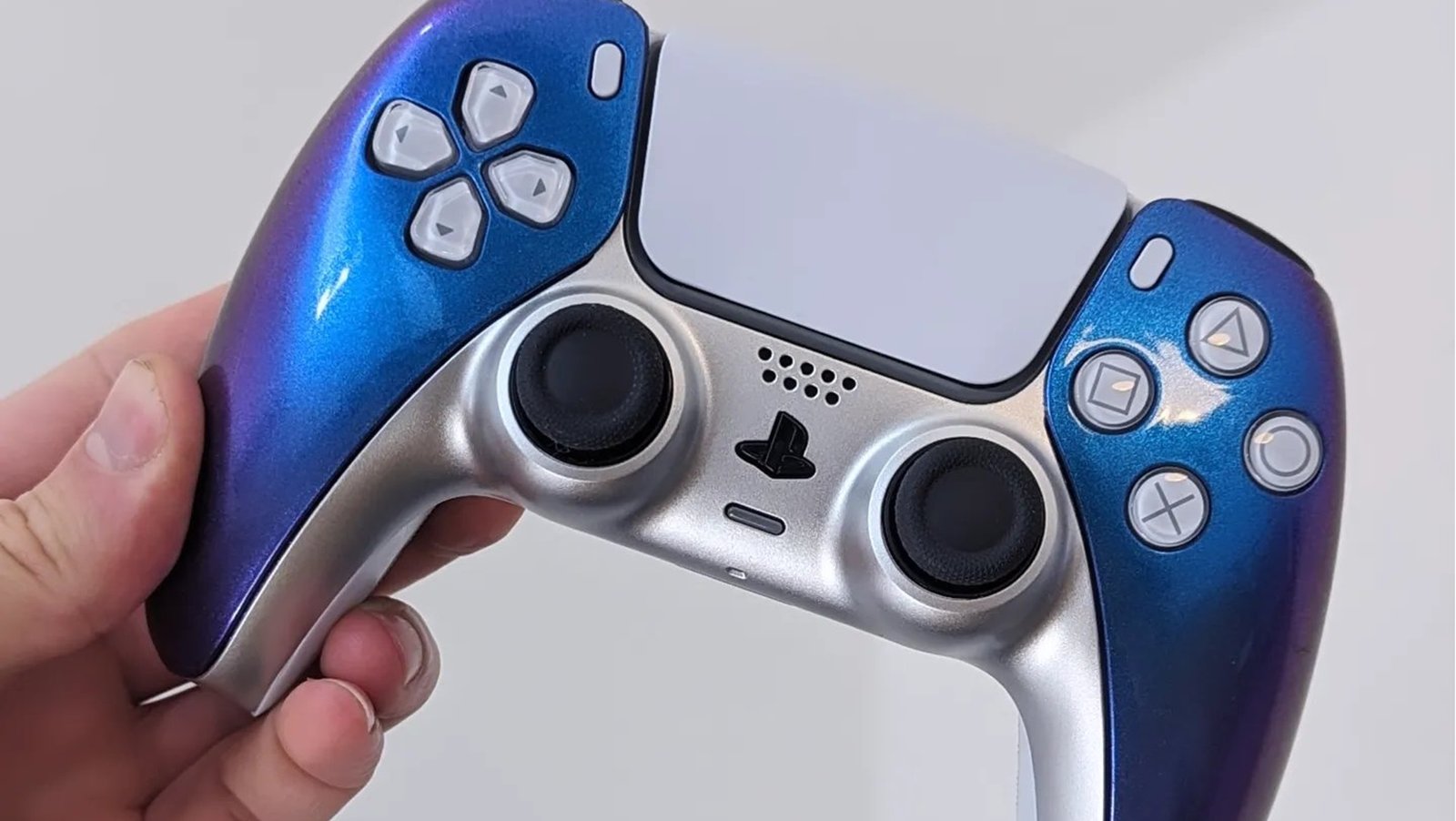
Everything in this guide works identically with a TCP custom PS5 controller. We use the same USB connection, the same Bluetooth pairing, the same Steam setup. This is because TCP controllers are built on genuine Sony DualSense hardware, so Windows and Steam recognise them exactly as they would a standard DualSense.
The difference? What’s inside.
Stick drift is the single most common complaint from DualSense users on PC. The standard ALPS potentiometer sticks wear out. On a desktop where the controller doubles as a mouse cursor for navigating menus and browsers, drift is even more noticeable and annoying than on console. TCP’s Hall Effect and TMR analogue sticks are contactless and will never develop drift. Each has a 12-month warranty to back that claim.
For competitive PC gaming, TCP’s ClickSticks provide back buttons that let you jump, slide, and reload without lifting your thumbs from the sticks. Digital triggers reduce actuation time to near-instant. IAS adjustable stick heights let you fine-tune your aim sensitivity physically rather than through software settings.
A standard DualSense costs around £64.99. The TCP Pro starts at £135-£140. The TCP Ultimate ranges from £165 to £190. They’re a lot more expensive, but don’t forget that these aren’t casual purchases. They are for PC gamers who are serious about precision, durability, and never dealing with stick drift again, or want a controller to enjoy Ghost of Tsushima with.
.Configure yours in the custom PS5 controller builder, browse the full range of available modifications to see what is possible.
Can you use a PS5 controller on PC?
Yes. The DualSense works on PC natively via USB and Bluetooth on Windows 10 and 11. Steam has built-in PlayStation controller support. Third-party tools like DS4Windows extend compatibility to non-Steam games.
Do adaptive triggers and haptic feedback work on PC?
In supported games, yes. Most require a wired USB connection. Bluetooth support for adaptive triggers varies by game. Haptic feedback over Bluetooth is generally not supported. A growing list of PC games supports native DualSense features.
Is the PS5 controller better than an Xbox controller for PC?
It depends on your priorities. The Xbox controller has wider native compatibility (XInput is the PC standard). The DualSense offers adaptive triggers, haptic feedback, a gyroscope, and a touchpad that the Xbox controller lacks. For games that support DualSense features, the PS5 controller provides a richer experience. For plug-and-play simplicity across all games, Xbox is easier.
Why is my PS5 controller not working on PC?
The most common causes are: a charge-only USB cable (replace with a data-capable cable), outdated controller firmware (update via the PlayStation Accessories app), Bluetooth pairing conflicts (reset the controller via the pinhole button), or missing drivers (update via Device Manager). See the troubleshooting section above for step-by-step fixes when you’re having trouble using a PS5 controller on PC.
Should I use wired or wireless for PC gaming?
Wired for competitive play (lowest latency, full DualSense feature support) and wireless for casual or couch gaming. Full haptic feedback and speaker audio require a wired connection in most games.

The PS5 DualSense is one of the best controllers ever made. It has adaptive triggers, haptic feedback, a built-in speaker, a touchpad, and a comfortable

We know. We know. The latest Resident Evil game came out weeks ago (February 27, 2026), so our best PS5 controller settings for Resident Evil
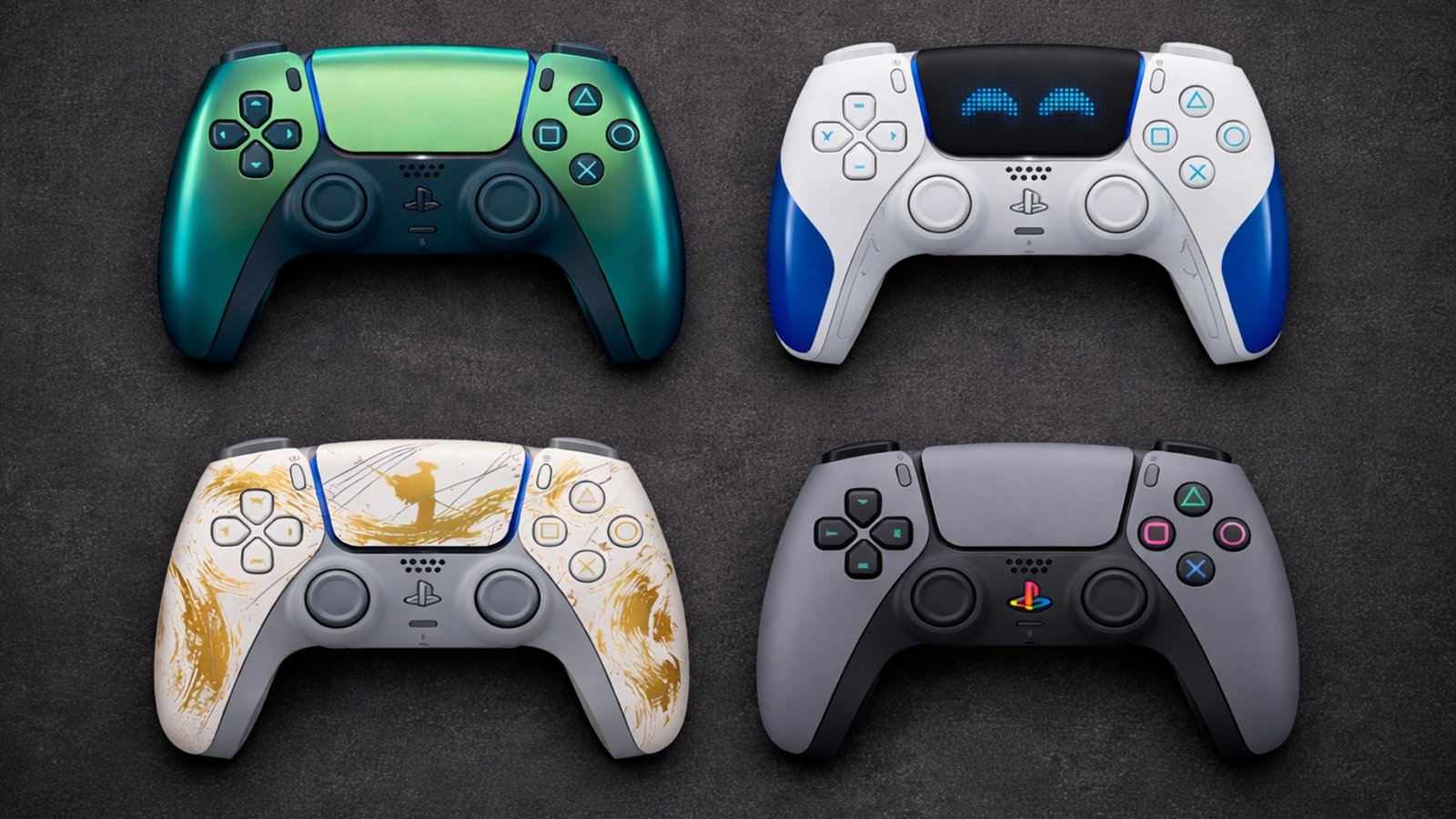
Sony has released over 30 limited edition PS5 DualSense controller colours and theemes the PS5 launched in November 2020. Some are genuinely stunning, but you
Not so fun fact: PS5 pricing has changed more in the last 18 months than in any previous PlayStation generation. What launched at $499 in
No comment yet, add your voice below!