Verde Casino op Je Telefoon: Snelle Slots Tussen de Momenten van de Dag
De meeste mensen zitten niet meer urenlang achtereen te gamen. Ze spelen in fragmenten — drie minuten wachten op de waterkoker, een paar spins in

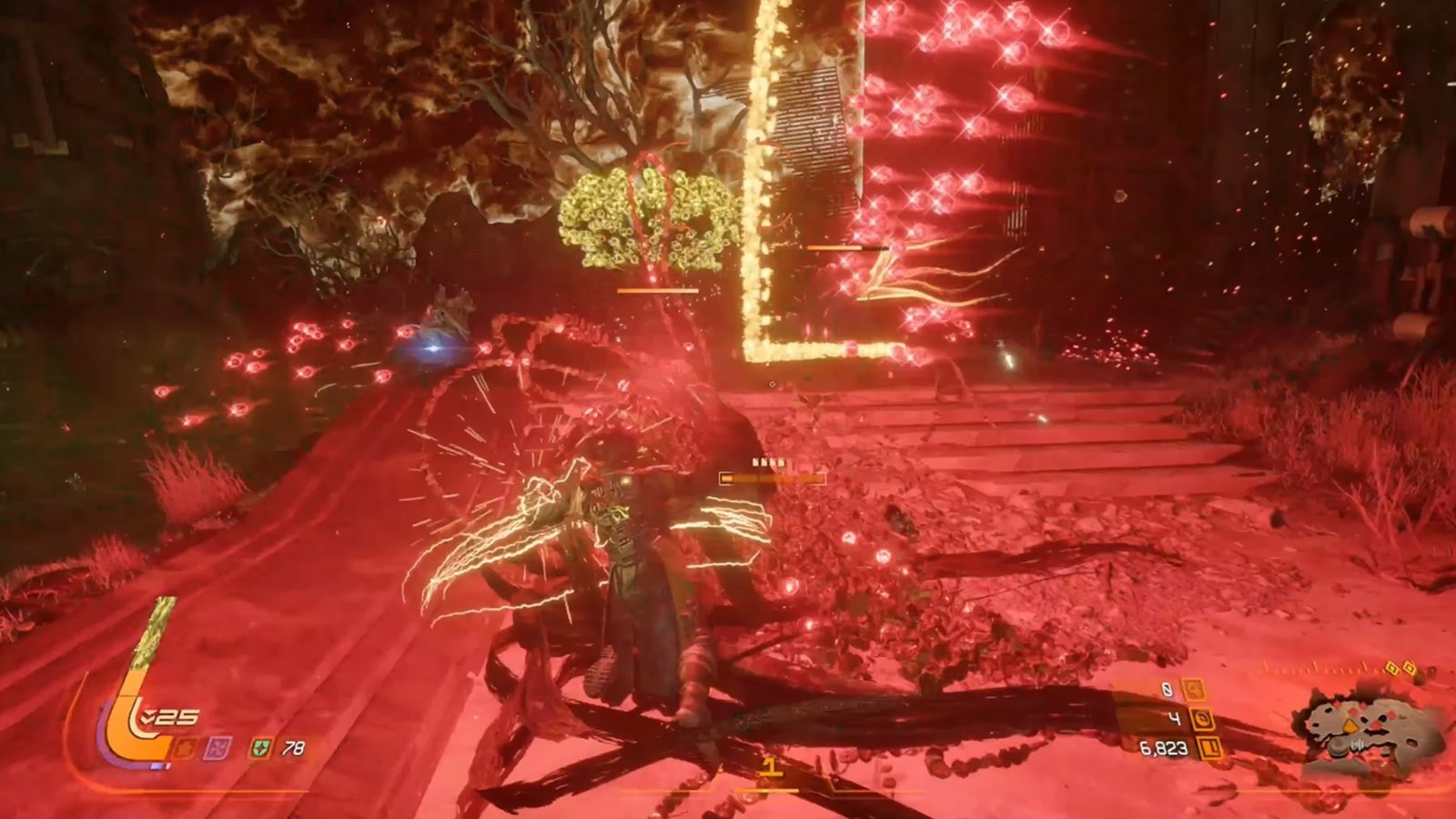
Saros is one of the first major PS5 exclusives of 2026 and potentially the most demanding game you will play with a DualSense this year.
Housemarque’s follow-up to Returnal takes the studio’s signature bullet-hell combat, wraps it in a roguelite progression system, and sets it on Carcosa, a shape-shifting alien planet where an ominous eclipse corrupts everything it touches.
The game has already earned rave reviews. The DualSense integration is a standout. The L2 trigger uses a half-pull for alt-fire and a full-pull for Power Weapons. Meanwhile, haptic feedback conveys the atmospheric pressure during eclipses. Every weapon feels different through the controller.
Unfortunately, the best PS5 controller settings for Saros are not what’s default. If you are playing Saros on stock DualSense settings, you are absorbing more damage than necessary because your camera cannot keep up with the projectile density, and your dead zones are eating stick range you need for the dodge-shield-discharge rhythm that defines the combat loop.
This guide provides a tested baseline, fine-tuning advice, and hardware recommendations. Whether you are playing on day one on April 30 or 48 hours early via the Digital Deluxe Edition (April 28), you’ll want to check the best PS5 controller settings for Saros right before your first run on Carcosa.
Saros is not a cover shooter. It is not a tactical shooter. It is a bullet-hell action game played from a third-person perspective, and its mechanics require specific controller settings unlike standard shooters.
| Mechanic | What It Means for Your Controller |
| Soltari Shield (L1) | Absorb incoming projectiles. The absorbed energy transforms your right arm into Carcosan Power Weapons. Requires rapid L1 activation while maintaining camera aim. |
| L2 Half-Pull Alt-Fire | Pull L2 halfway to activate alt-fire (grenade launchers, ricochet projectiles). Full-pull activates Power Weapons. Trigger sensitivity and dead zone must distinguish between half and full. |
| Bullet-Hell Density | Dozens of projectiles on screen simultaneously. Camera must track threats from all directions without overcorrecting. Smooth, moderate sensitivity is essential. |
| Dodge / Thruster | Hugh’s suit thrusters provide lateral dodges and hover. Constant dodging while aiming demands thumbs on sticks at all times. Back buttons eliminate the face-button compromise. |
| Roguelite Progression | Weapons and loadouts evolve across runs. Settings must work across different weapon types and fire rates. One sensitivity for all weapons, not per-weapon tuning. |
| Eclipse Corruption | Corruption damage reduces max armour. You need to be precise and aggressive to purge corruption via gauntlet attacks. Fast trigger transitions matter. |
| Second Chance | First death per run triggers instant revival. Does not replace precision. Bad settings mean burning your Second Chance on avoidable damage. |
Saros demands constant camera movement, fast trigger transitions between shield/alt-fire/Power Weapon, and dodge inputs that do not interrupt your aim.
Stock DualSense settings are tuned for a much slower style of play. This is where knowing the best PS5 controller settings for Saros comes in.
| Setting | Value | Why |
| Horizontal Sensitivity | 6–7 | Bullet-hell requires wide camera sweeps. Higher than typical third-person. |
| Vertical Sensitivity | 5–6 | Slightly lower than horizontal. Projectiles spread horizontally more than vertically. |
| Aim Sensitivity (ADS) | 4–5 | Tighter when aiming down sights for precision shots on exposed weak points. |
| Dead Zone (Inner) | 5–7 (stock) / 3–5 (TMR) | Lower is better for responsiveness. Only raise if idle drift is present. |
| Dead Zone (Outer) | 95–100 | Maximum range utilisation. No reason to reduce. |
| Aim Assist | On (3–4 / Medium) | Assists with tracking during chaotic multi-enemy fights. Do not disable. |
| Aim Acceleration | Low (2–3) | Prevents overshooting during fast camera sweeps. High acceleration is erratic in bullet-hell. |
| Response Curve | Linear | Most consistent stick-to-camera relationship. Exponential adds unpredictable acceleration. |
| Look Inversion | Personal preference | No performance impact. Use whatever feels natural. |
| Motion Blur | Off | Obscures projectile visibility during fast camera movement. Always off. |
| Camera Shake | Reduced or Off | Eclipse events and explosions cause significant shake. Reduce for clarity. |
| Vibration Intensity | Medium | Haptic feedback provides genuine combat information. Do not disable entirely. |
Start with these values and give yourself at least one full biome before making any adjustments. The first area of Carcosa introduces the core combat loop at a manageable pace. If you find yourself constantly overshooting targets during camera sweeps, lower horizontal sensitivity by one increment. If enemies are flanking you before you can turn, raise it.
The sensitivity is deliberately higher than what we recommended for Resident Evil Requiem or Pragmata. Bullet-hell combat requires wider, faster camera coverage than survival horror or hybrid shooters. You need to see threats coming from all directions. Our RE Requiem settings guide uses lower values because that game rewards precision over speed. Saros rewards both simultaneously.
The combat loop in Saros goes like this: dodge projectiles with the thruster, shield with L1 to absorb energy, discharge Power Weapons with a full L2 pull, and fire your primary weapon between sequences. It’s the kind of loop that requires your thumbs on both sticks at all times for camera and movement. Every face button press that pulls your thumb off the right stick is a frame where you are not tracking threats.
| Button | Function |
| L2 (half-pull) | Alt-fire (grenade launcher, ricochet, etc.) |
| L2 (full-pull) | Power Weapon (uses absorbed shield energy) |
| R2 | Primary fire |
| L1 | Soltari Shield (absorb projectiles) |
| R1 | Melee / Gauntlet attack (purges corruption) |
| Left Stick | Move |
| Right Stick | Camera / Aim |
| L3 | Sprint |
| Circle | Dodge / Thruster dash |
| X | Interact / Examine |
| Square | Reload |
| Triangle | Inventory / Suit menu |
| D-Pad | Quick select items / consumables |
| Touchpad | Map |
The problem: Dodge is on Circle. Every time you dodge, your right thumb leaves the camera stick. In a bullet-hell game where you are dodging constantly, that is a constant stream of lost camera control.
| Controller | Back Button 1 / ClickStick 1 | Back Button 2 / ClickStick 2 |
| Stock DualSense | Swap Circle (dodge) to R3 via PS5 Accessibility settings | Swap Square (reload) to L3 |
| TCP Pro (2 ClickSticks) | Dodge / Thruster dash | Melee / Gauntlet (corruption purge) |
| TCP Ultimate (ClickSticks + IAS) | Dodge / Thruster dash | Melee / Gauntlet + taller right stick for aim precision |
The TCP Pro remap is the recommended layout. Dodge on one ClickStick keeps your right thumb permanently on the camera stick. Gauntlet attack on the other ClickStick lets you purge corruption without interrupting your movement or aim. Both thumbs stay on both sticks throughout the entire shield-absorb-dodge-discharge loop.
The TCP Pro controller (£135 to £140) includes two ClickSticks with a flush mechanical design that prevents accidental presses during the frantic dodging Saros demands. The TCP Ultimate (£165 to £190) adds IAS adjustable stick heights, letting you physically raise the right stick for tighter aim precision during boss fights.
If you have played Returnal, the best PS5 controller settings for Saros should look familiar. Housemarque designs combat around the same principle: constant simultaneous use of both sticks with fast trigger transitions. The controller layout solution that worked for Returnal works for Saros.
Saros’s adaptive trigger implementation is one of the best on PS5. The L2 half-pull alt-fire and full-pull Power Weapon system is the same design that earned praise in Returnal, and it is executed even better here. Every weapon has a distinct alt-fire mode (grenade launchers, ricochet projectiles, spread shots) accessed by pulling L2 halfway. Pull it fully, and you activate your Carcosan Power Weapon, fuelled by the energy your Soltari Shield absorbed.
This dual-function trigger is brilliant. It also creates a specific controller decision.
| Play Style | Trigger Setting | Why |
| Immersion | Adaptive triggers on (full intensity) | Feel every weapon differently. The half-pull resistance tells you when alt-fire activates. Housemarque designed this. |
| Speed / competitive | Adaptive triggers off or digital triggers | Faster transitions between primary fire, alt-fire, and Power Weapon. No resistance delay. Every millisecond matters in bullet-hell. |
| Comfort (long sessions) | Adaptive triggers on (reduced intensity) | Roguelite sessions can run 2+ hours per cycle. Full trigger resistance fatigues your index fingers. |
Here is the honest recommendation: play your first run with adaptive triggers at full intensity. Experience the game as Housemarque designed it. The half-pull tactile feedback genuinely helps you learn the trigger threshold between alt-fire and Power Weapon. Once you have internalized that threshold, you can switch to digital triggers for speed on subsequent runs.
TCP’s digital trigger modification eliminates all trigger travel, converting the analogue pull to a mouse-click-style binary input. This removes the half-pull alt-fire mechanic entirely (it defaults to the remapped button instead), but gives you the fastest possible fire rate and Power Weapon activation. For players chasing leaderboard times on Carcosa’s roguelite cycles, the speed advantage is real.
Keep haptic feedback at Medium. Housemarque treats haptics as a genuine information channel. Creative Director Gregory Louden confirmed that haptics convey “the atmospheric pressure of when an eclipse occurs” and weapon impact feedback. At Medium intensity, you get the information without the battery drain or hand fatigue of Strong. Do not disable haptics entirely. You will miss tactile cues that supplement the visual chaos.
Once you have completed a few runs and your loadout begins to evolve through Saros’s permanent progression system, revisit your settings.
If you have unlocked faster-firing weapons, you may want to increase sensitivity by one increment to match the higher RPM combat tempo. If you have unlocked heavier, slower weapons, your current settings should still work.
Lower your dead zones incrementally. Start at 7, drop to 6 after a few hours if no drift is present, then to 5. If you are using TMR or Hall Effect sticks, you can safely drop to 3 to 4 without drift risk. The lower your dead zone, the more responsive your initial stick input. In a bullet-hell game where the first millisecond of camera movement determines whether you dodge a projectile pattern or absorb a hit, that responsiveness compounds across every encounter.
Test dead zone settings in the first area of Carcosa before committing to a full run. Stand still. Release the sticks. Watch for any camera movement. If the camera drifts on its own, raise the dead zone by one. If it does not, you are at the right level. If you need a dead zone above 8, your potentiometers are wearing and masking the problem with dead zone inflation. TCP’s stick drift repair service can replace the worn sticks with TMR modules from £24.
The Karakos Modifier system (Saros’s difficulty adjustment) lets you tweak individual difficulty parameters without changing the entire experience. This is not relevant to controller settings directly, but it means you can isolate whether a problem is your settings or the game’s difficulty. If you are struggling, check your settings before lowering the Karakos Modifier.
| Platform | Resolution | Frame Rate |
| PS5 (standard) | Dynamic resolution | 60 FPS (largely stable) |
| PS5 Pro | Higher base res + PSSR v2 (near-native 4K) | 60 FPS (more stable, sharper image) |
Saros runs at a largely stable 60 FPS on both standard PS5 and PS5 Pro, which is impressive given the particle density and environmental detail. However, the PS5 Pro is still the better platform. There’s just so much more visual clarity there. PSSR v2 upscaling provides a near-native 4K image that makes projectile patterns and enemy attack cues easier to read. In a bullet-hell game, seeing threats clearly is a huge advantage.
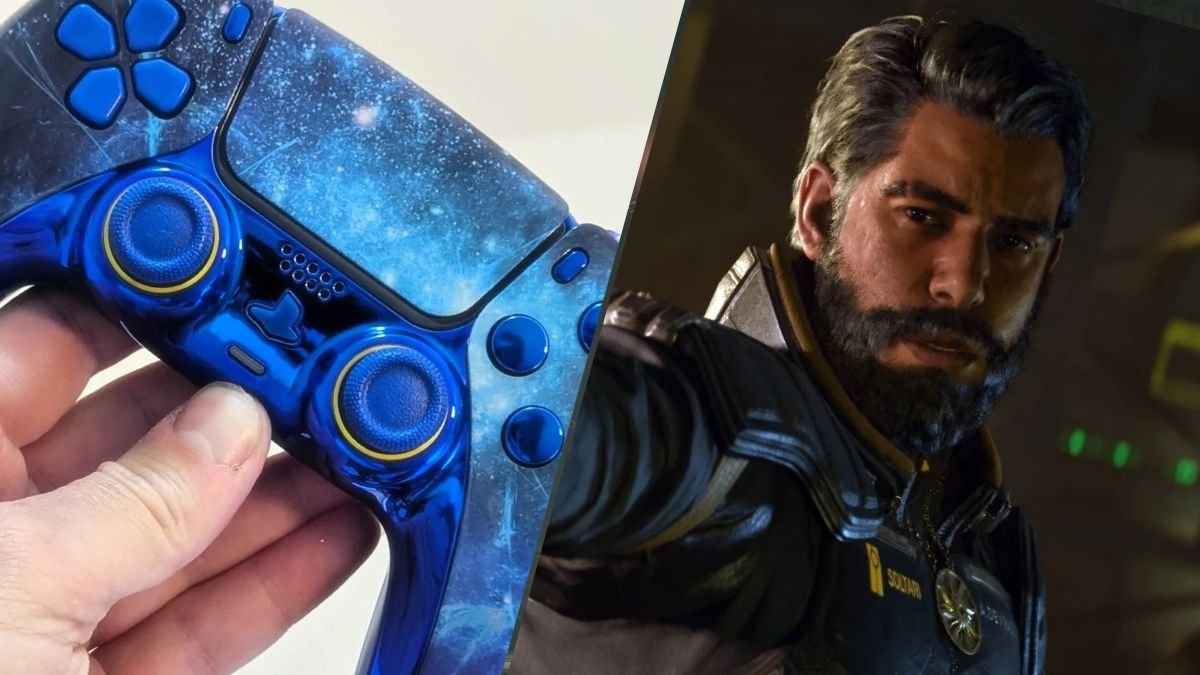
Saros’s bullet-hell combat creates three controller demands that software settings cannot fully solve.
TMR sticks for responsive dead zones. Bullet-hell precision requires the lowest possible dead zone. TMR sticks are contactless and maintain consistent accuracy indefinitely, meaning you can run dead zones of 3 to 5 without drift risk. Potentiometer sticks that have worn even slightly force you to raise the dead zone to compensate, costing you responsiveness in a game that punishes slow initial camera response.
ClickSticks for the dodge-shield-discharge loop. Saros’s core combat rhythm requires constant dodging while maintaining camera aim. Dodge on a ClickStick keeps your right thumb on the right stick through every thruster dash. Gauntlet attack on the second ClickStick keeps your left thumb on the left stick during corruption purges. Both thumbs on both sticks, always.
Digital triggers for the fastest Power Weapon activation. The L2 half-pull alt-fire is one of the best DualSense features in any PS5 game. But if you have already internalized the alt-fire threshold and you are chasing roguelite efficiency, digital triggers provide the fastest possible transition from shield absorb to Power Weapon discharge.
Configure your ideal Saros setup in the custom PS5 controller builder. For the general FPS controller philosophy behind these recommendations, our best PS5 FPS controller setup guide covers the fundamentals. And for another action shooter with similar third-person intensity, the ARC Raiders settings guide uses a comparable approach.
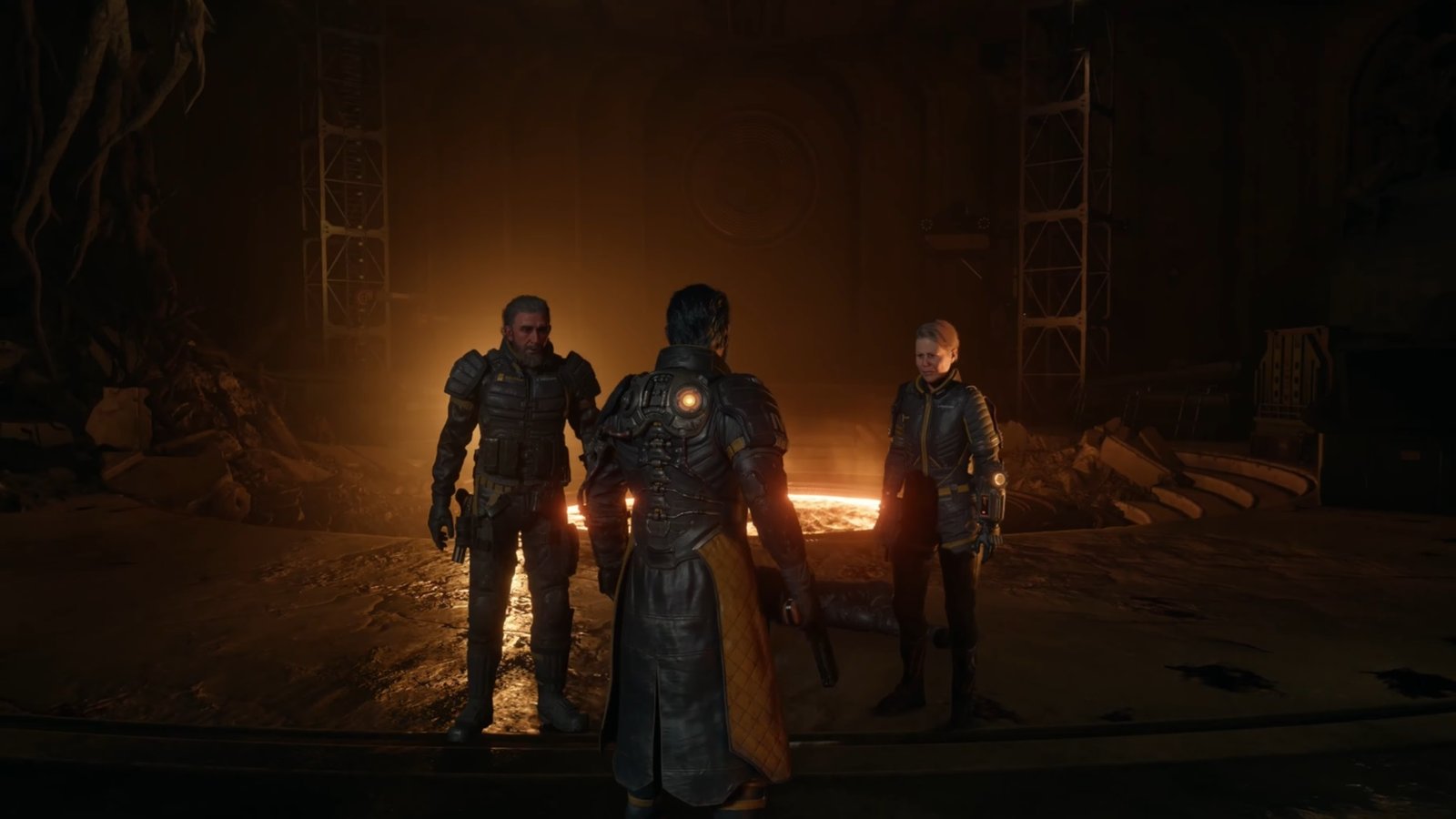
These PS5 controller settings for Saros provide a tested baseline. Expect to fine-tune as your loadout evolves and as you learn the attack patterns of Carcosa’s hostiles. The roguelite structure means every run teaches you something new, and your settings should evolve with your skill.
The settings that cannot evolve are the ones limited by hardware. Stick drift does not improve with practice. Trigger travel does not shorten with experience. Missing back buttons do not appear after a firmware update. Those are hardware problems that need hardware solutions.
The TCP Pro (£135 to £140) with TMR sticks, ClickSticks, and digital triggers is the controller Saros was built for. Housemarque designed combat around constant simultaneous stick use, fast trigger transitions, and precision under pressure. TCP designed a controller that delivers all three.
Good luck on Carcosa. You are going to need it.

No comment yet, add your voice below!